Logging
XML Logging
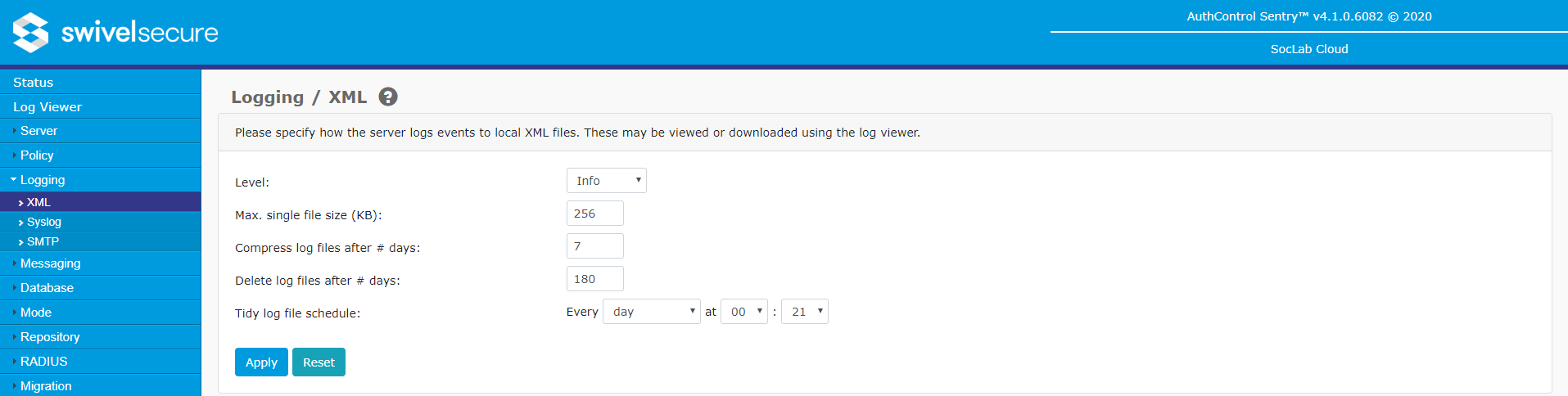
‘Level’: Minimum level of logging entries that will be stored in the XML log files. The levels, in order of increasing severity, are info, warning, error and fatal. Logging to XML files may be disabled entirely by selecting Off.
‘Max. single file size (KB)’: Maximum file size (KB) for each XML log file. When the currently in use log file reaches this size a new log file is started.
‘Compress log files after # days’: Set this value to the number of days to keep log files before compressing them to zip files. Zipped log files will no longer be shown in the log viewer, but the zip files will remain on the server until the time specified below, to allow time for them to be archived. If this value is set to 0, log files will never be compressed. The default value for this is 7 days.
‘Delete log files after # days’: Set this value to the number of days to keep log files (compressed or uncompressed) before deleting them from the server.If this value is set to 0, log files are never deleted. If this value is set lower than the previous value, files are never compressed, but deleted directly. The default value for this is 180 days (i.e. approx. 6 months). When setting this and the previous value, consider the available disk space on the Swivel server. Also bear in mind that logs will fill up more quickly on busier servers.
‘Tidy log file schedule’: Specifies when the service that tidies up log files will be run. By default, it is run once a day. Files are tidied according to the settings above: files older than the specified times will be compressed or deleted.If you turn this option off (by setting the schedule to Never), log files will never be deleted.
‘Debug enabled’: this option is no longer used: there are no debug log events.
Output to Syslog

‘Level’: Minimum level of logging entries that will be sent to the external syslog server. The levels, in order of increasing severity, are info, warning, error and fatal. Logging to a syslog server may be disabled entirely by selecting Off.
‘Host’: Syslog host to send logging event to.
‘Facility’: Syslog facility in which logging events will be sent to on the syslog host.
Output to Email (SMTP)

‘From email address’: Address from which logging event emails will appear to originate.The email will contain the events within the smtp event buffer.
‘Email Trigger’: The event that will trigger the sending of an error email.
‘Logging Level’: The level of events to be contained in the smtp event buffer.
‘Event Buffer Size’: The number of events to be stored in teh smtp event buffer.
‘Errors Email Address’: Email address to which error and fatal logging events should be sent.
‘Errors subject’: Subject line for error and fatal logging event emails.
‘Send account locks’: Enable/disable the sending of account locked events via email. When enabled emails will be sent to the configured address when a user account becomes locked.
‘Account locks email address’: Email address to which account locked events should be sent.
‘Account locks subject’: Subject line for account locked event emails.
‘Send User Account Create/Delete’: Enable/disable the sending of account creation/deletion events via email. When enabled emails will be sent to the configured address when a user account is created or deleted.
‘Account audit email address’: Email address to which account locked events should be sent.
‘Account create subject’: Subject line for account creation event emails.
‘Account create message body’: Message for account creation event emails.
‘Account delete subject’: Subject line for account deletion event emails.
‘Account delete message body’: Message for account deletion event emails.
‘Send User Authenticated’: It is possible to send an email to the user every time they authenticate
‘Locale for authentication message’: In certain circumstance the locale may need to be specified to support non-standard characters
‘Time offset for authentication message’: Allows to specify the time offset for the message to allow for the fact that the users may be in a different timezone to the Swivel server.
‘Authenticated message subject’: Subject line for authentication event emails.
‘Authenticated message body’: Message for authentication event emails.
Using the Log Viewer
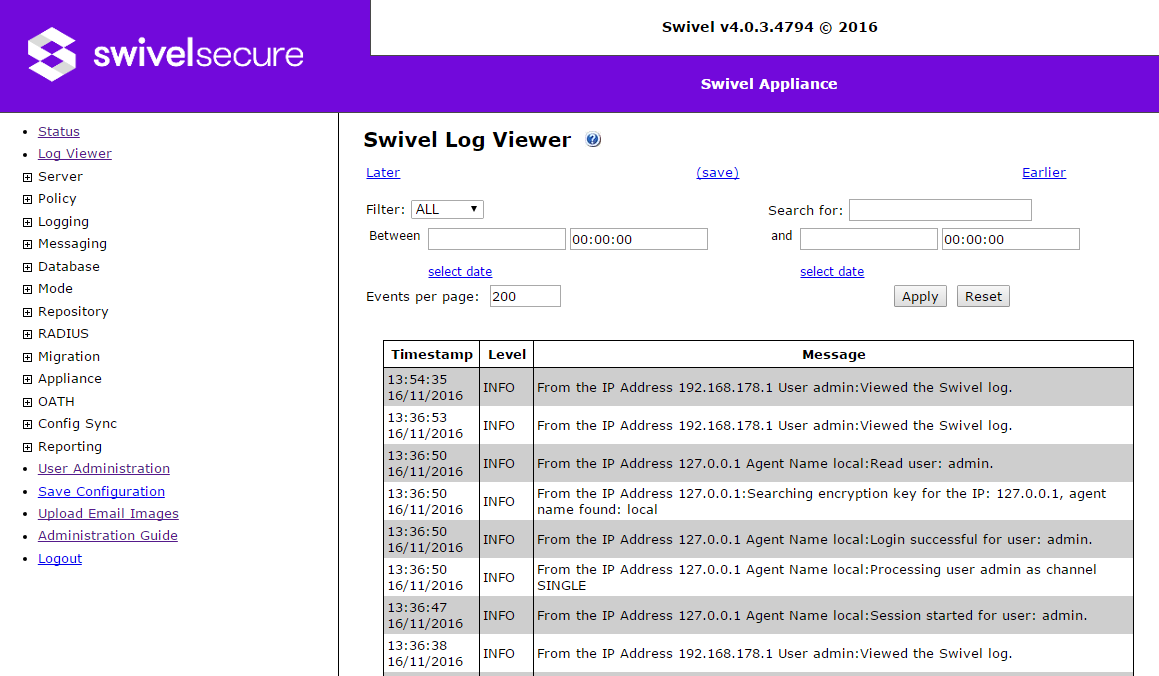
The logs can be searched using the fields at the top of the page:
Filter: Set the minimum level for displayed log records: ‘ALL’, ‘INFO’, ‘WARN’, ‘ERROR’ and ‘FATAL’.
Search for: Enter text to search for. Note that only exact matches are found, and the search is case sensitive.
Between … ‘and’: Set the start and end date and time to search for. Clicking on the ‘select date’ link below the date shows a calendar pop-up to select the date.
Additionally, you can specify how many records are shown on the page, and use the Later and ‘Earlier’ links to show more records.
Finally, the (save) link will retrieve the current data as a text (XML) file.