Logging
Output to Database
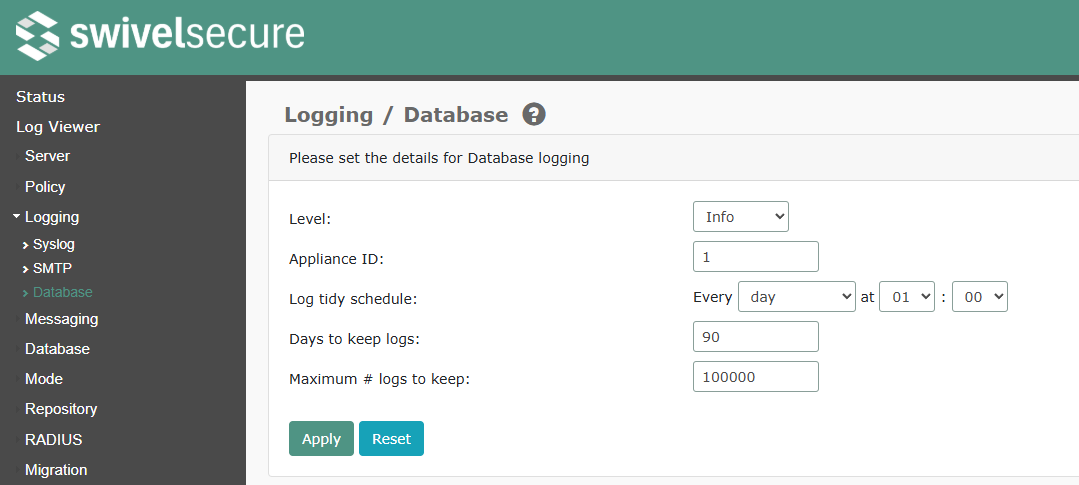
The database is the primary location for Sentry logs. It is stored on the appliance, and can be viewed using the Log Viewer page (see below)
‘Level’: the event level at which logs are recorded.
‘Appliance ID’: the numeric identifier for this appliance. This is relevant for HA appliances, where the database is replicated. In this case, the primary appliance should be 1 and the standby 2.
‘Log tidy schedule’: the time at which the database is tidied, according to the following settings
‘Days to keep logs’: the number of days to keep the logs. Logs older than this are deleted by the log tidy job
‘Maximum # of logs to keep’: the maximum number of events to keep. If there are more than this, the log tidy job deletes the oldest logs, irrespective of the retention time.
Using the Log Viewer
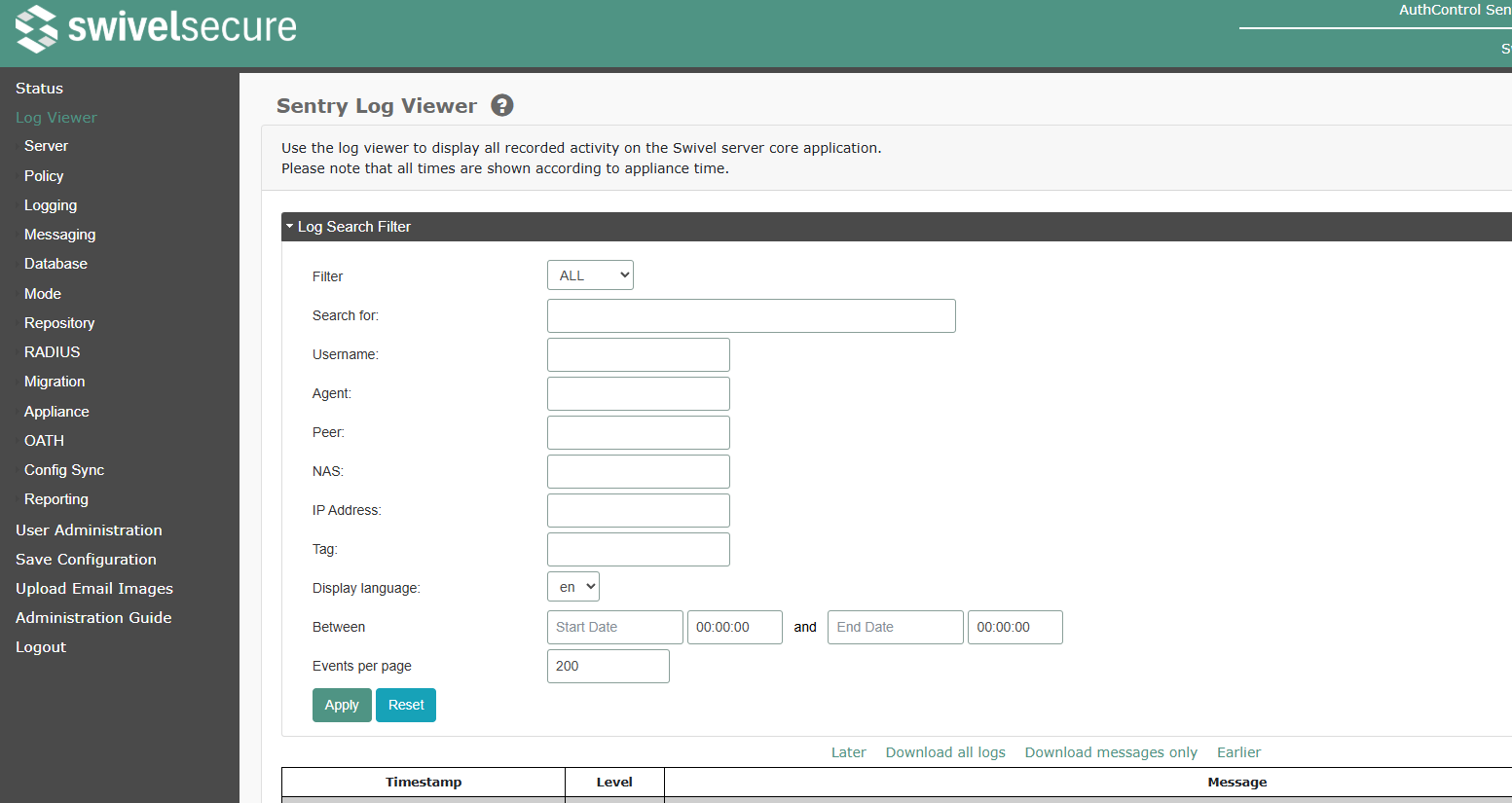
The logs can be searched using the fields at the top of the page:
‘Filter’: Set the minimum level for displayed log records: ‘ALL’, ‘INFO’, ‘WARN’, ‘ERROR’ and ‘FATAL’.
‘Search for’: Enter text to search for. Note that only exact matches are found, and the search is case sensitive. This only applies to the event body, not to any of the context values listed below
‘Username’: The name of the user the event relates to
‘Agent’: The Agent creating the event, where relevant
‘Peer’: Events triggered by a specified Peer appliance
‘NAS’: For RADIUS events, the NAS triggering the event
‘IP Address’: The IP address the event was initiated from
‘Tag’: custom tag assigned to the event
Between … ‘and’: Set the start and end date and time to search for. Clicking on the ‘select date’ link below the date shows a calendar pop-up to select the date.
Additionally, you can specify how many records are shown on the page, and use the Later and ‘Earlier’ links to show more records.
Finally, the (save) link will retrieve the current data as a text (XML) file.
Output to Syslog
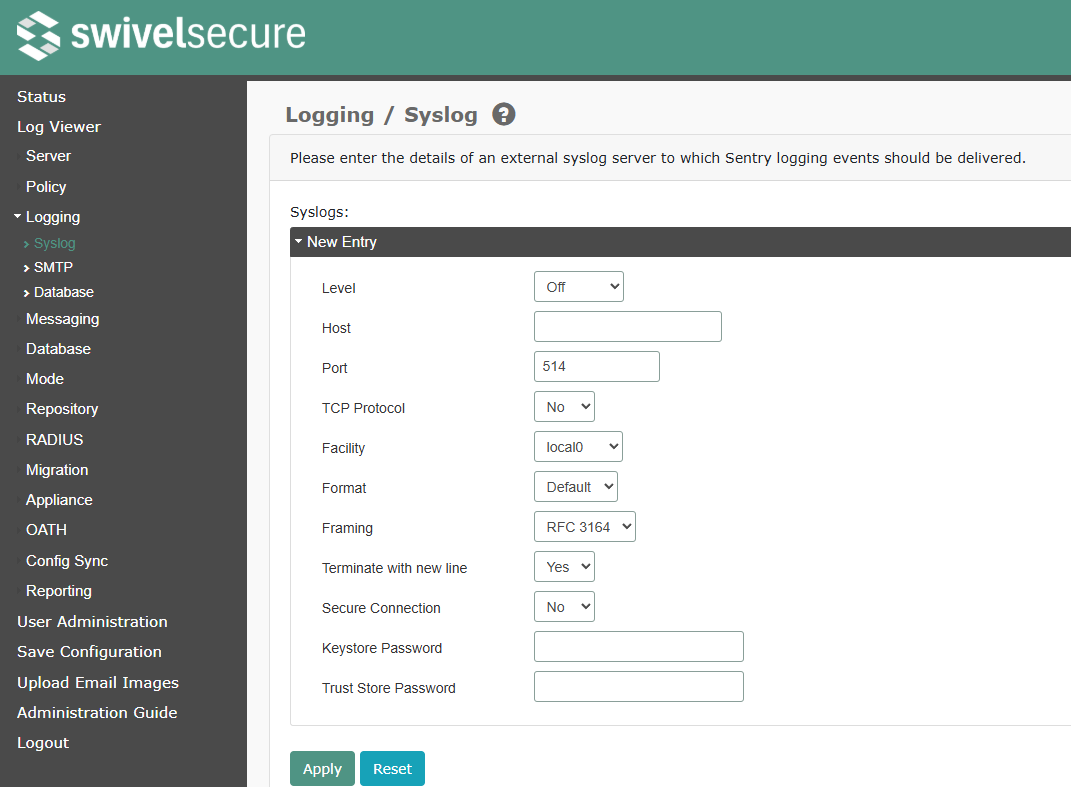
‘Level’: Minimum level of logging entries that will be sent to the external syslog server. The levels, in order of increasing severity, are info, warning, error and fatal. Logging to a syslog server may be disabled entirely by selecting Off.
‘Host’: Syslog host to send logging event to.
‘Port’: The TCP port for Syslog logging.
‘TCP Protocol’: If “Yes”, logs are written using TCP. If “No”, they use UDP.
‘Facility’: Syslog facility in which logging events will be sent to on the syslog host.
‘Format’: The format for the syslog events. Options are Default, Legacy (as used by Sentry 4.0 and earlier), JSON and XML.
‘Framing’: The framing around syslog events. Options are None, PRI Only, RFC 3164 and RFC 5424
‘Terminate with new line’: If “Yes”, each event is terminated by a newline character.
‘Secure Connection’: If “Yes”, syslog connections use TLS.
‘Keystore Password’: The password for the TLS keystore, if required
‘Trust Store Password’: The password for the TLS trust store, if required
Please contact Swivel Secure support for more details on using TLS with syslog.
Output to Email (SMTP)
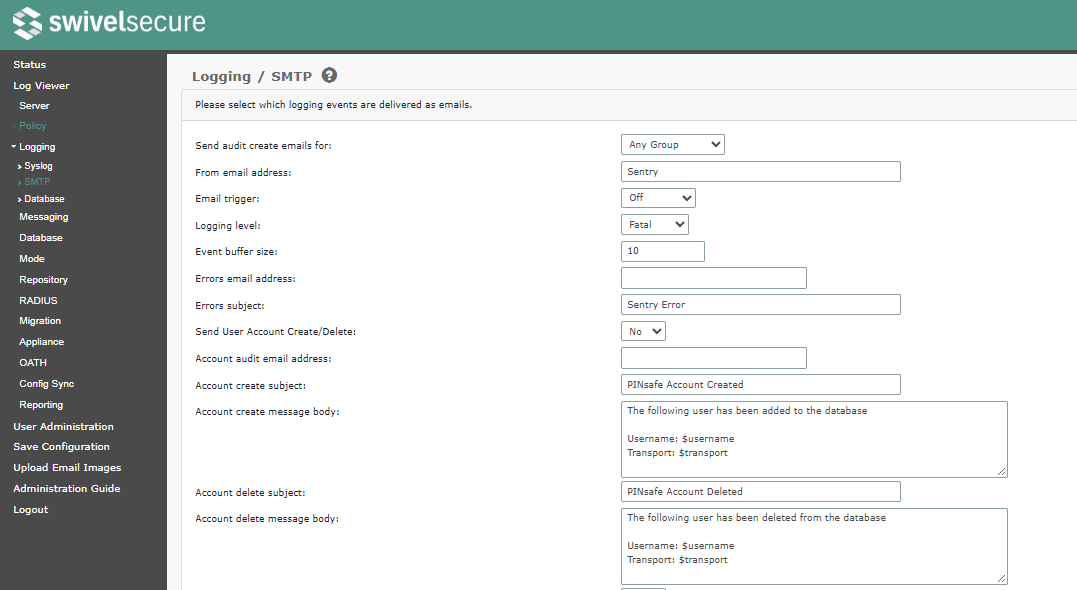
‘Send audit create emails for’: specifies whether audit emails are sent when any user account is created, or only those in a specified group
‘From email address’: Address from which logging event emails will appear to originate.The email will contain the events within the smtp event buffer.
‘Email Trigger’: The event that will trigger the sending of an error email.
‘Logging Level’: The level of events to be contained in the smtp event buffer.
‘Event Buffer Size’: The number of events to be stored in teh smtp event buffer.
‘Errors Email Address’: Email address to which error and fatal logging events should be sent.
‘Errors subject’: Subject line for error and fatal logging event emails.
‘Send User Account Create/Delete’: Enable/disable the sending of account creation/deletion events via email. When enabled emails will be sent to the configured address when a user account is created or deleted.
‘Account audit email address’: Email address to which account created/deleted events should be sent.
‘Account create subject’: Subject line for account creation event emails.
‘Account create message body’: Message for account creation event emails.
‘Account delete subject’: Subject line for account deletion event emails.
‘Account delete message body’: Message for account deletion event emails.
‘Send User Authenticated’: It is possible to send an email to an admin address every time a user authenticates
‘Locale for authentication message’: In certain circumstance the locale may need to be specified to support non-standard characters
‘Time offset for authentication message’: Allows to specify the time offset for the message to allow for the fact that the users may be in a different timezone to the Swivel server.
‘Authenticated email address’: The address to send messages relating to account authenticated
‘Authenticated message subject’: Subject line for authentication event emails.
‘Authenticated message body’: Message for authentication event emails.
‘Send account locks’: Enable/disable the sending of account locked events via email. When enabled emails will be sent to the configured address when a user account becomes locked.
‘Account locks email address’: Email address to which account locked events should be sent.
‘Account locked subject’: Subject line for account locked event emails.
‘Account locked message’: Email body for account locked event emails.
‘Account unlocked subject’: Subject line for account unlocked event emails.
‘Account unlocked message’: Email body for account unlocked event emails.
XML Logging
NOTE: Version 4.3 no longer writes logs to XML files. The database is the main source for logs, and has been since version 4.1.