Policy
Overview
Since the first version of the Swivel Secure product was released in the year 2000, it has evolved to meet customer expectations and technological developments placed upon it. The authentication policies available to the administrator are wide ranging and can be complex in nature. This has resulted in a very granular product with many possible policy combinations.
Where is Policy configured?
The Swivel Secure ‘Core’ software contains a policy engine dictating a wide array of policy options from authentication method customisation parameters, credentials management, mobile and hard token policy, account lockout threshold and so on. The Policy menu can be found in the left hand menu under ‘Policy’, however you will also find many other settings in many other areas of the product that could be classed as policy.
The Swivel Secure ‘SSO’ software contains a Risk Based Authentication engine where a risk model can be defined for users logging in via the Identity Provider unified login portal (primarily for SAML based integrations). These ‘rules’ (or policies) can be defined under ‘Rules’, ‘Applications’ and ‘Authentication Methods’.
Policies can vary in their impact from being:
Global policy affecting all users
Authentication specific
Application specific
Group specific
Agent or RADIUS NAS specific
AuthControl Sentry Core Policies
In this section, we detail all of the available policies in the AuthControl Sentry Core. We include the functionality that these policies provide and where the policies are located within the software menus.
Policy Screens
Select a screen below to view specific policy settings:
Policy -> General
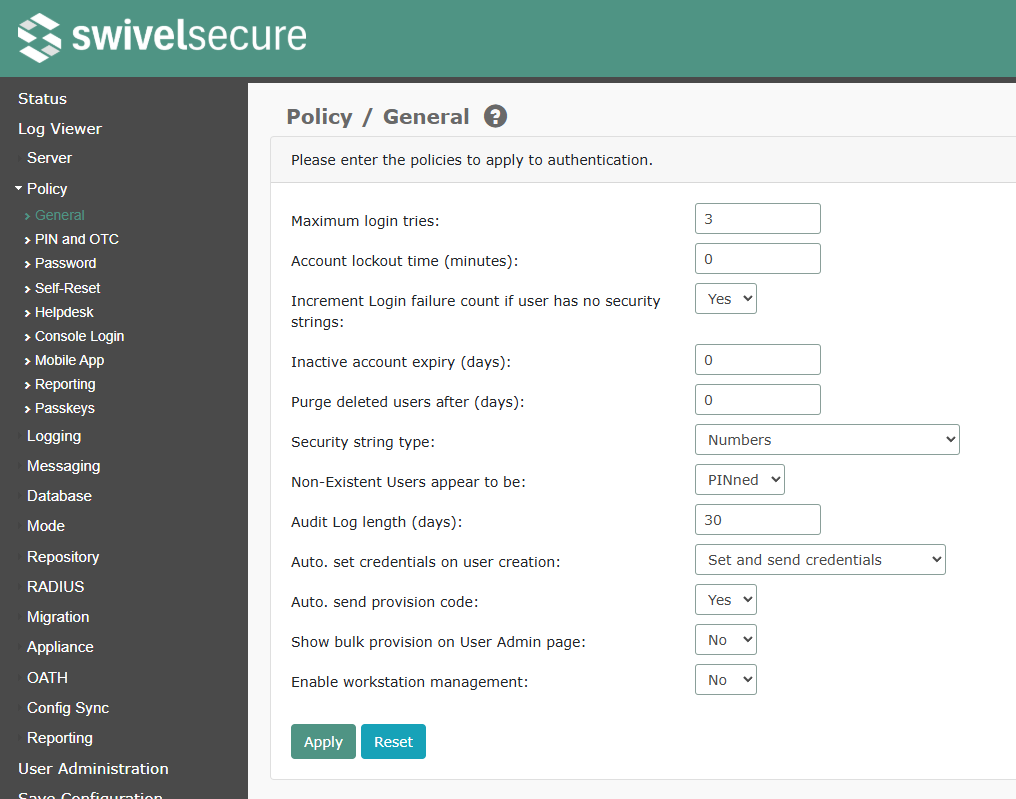
Maximum login tries
Description: Maximum number of consecutive failed login attempts a user can make before their account is locked. Note that setting the maximum to a high value or disabling it entirely greatly increases the risk of a brute force attack resulting in a successful authentication.
Default setting: 5
Account lockout time (minutes)
Description: Specifies how long an account will be locked out in the event of too many failed authentications. The default is 0, which means the lock will remain until an administrator or helpdesk user unlocks the user. If a period is set then after that period the account will be usable again. Note, however, that the lock flag is not reset until the user attempts to authenticate, so users will still appear to be locked even after the lock time has expired.
Default setting: 0
Increment Login failure count if user has no security strings
Description: This option effectively determines whether attempting a login without any valid security string counts as a failure.
Default setting: Yes
Inactive account expiry (days)
Description: Maximum number of days for which an account may remain inactive before it will be automatically locked by the inactive user check job. 0 means that the account will never be locked due to inactivity.
Default setting: 0
Purge deleted users after (days)
Description: How many days to keep users marked as deleted before permanently removing them. If 0 (the default), users are never automatically purged.
Default setting: 0
Security string type
Description: Security strings can be comprised of numbers, upper case letters, lower case letter, mixed case letters or a mix of upper case letters and numbers.
Default setting: Numbers
Non-Existent Users appear to be
Description: When a TURing image is requested for a user that does not exist, Swivel will still produce an image. This is to prevent a hacker determining which usernames are valid accounts. You can specify the type of image that is presented when a image for a non-existent user is requested. Therefore if all your users have PINs you should set this to PINned. If all your users are PINless, this should be set to PINless and if you have a mixture of users you should set this value to mixed.
Default setting: PINned
Audit Log Length (days)
Description: Swivel maintains an activity log for users. This setting determines how long this log is maintained. Entries older than this are removed by a scheduled job.
Default setting: 30
Auto. set credentials on user creation
Description: Enable/disable the automatic creation and setting of user credentials when they are initially added to the user population. Note that users must be correctly associated with an alert transport in order for them to receive notification of their credentials.
Possible values:
Do not set or send credentials: nothing is sent to new user accounts when they are created
Send message no credentials: a message is sent to new users informing them that an account has been created, but no credentials are set
Set and send credentials: a message is sent to new users giving them their new credentials
Default setting: Set and send credentials
Auto. send provision code
Description: If Yes, then new users will automatically be sent a provision code if they are configured as mobile app users and have a valid alert transport.
Default setting: No
Show bulk provision on User Admin page
Description: This option controls whether the bulk provision feature is enabled. This feature will send a new provision code to everyone that is not currently provisioned or has a valid pending provision code, is configured a mobile user, and has a valid alert transport.
Default setting: No
Enable workstation management
Description: If Yes, then a menu is added to allow remote configuration of workstations using AuthControl Desktop. Currently, this option serves no purpose as the ability to configure workstations remotely is not available.
Default setting: No
Policy -> PIN and OTC
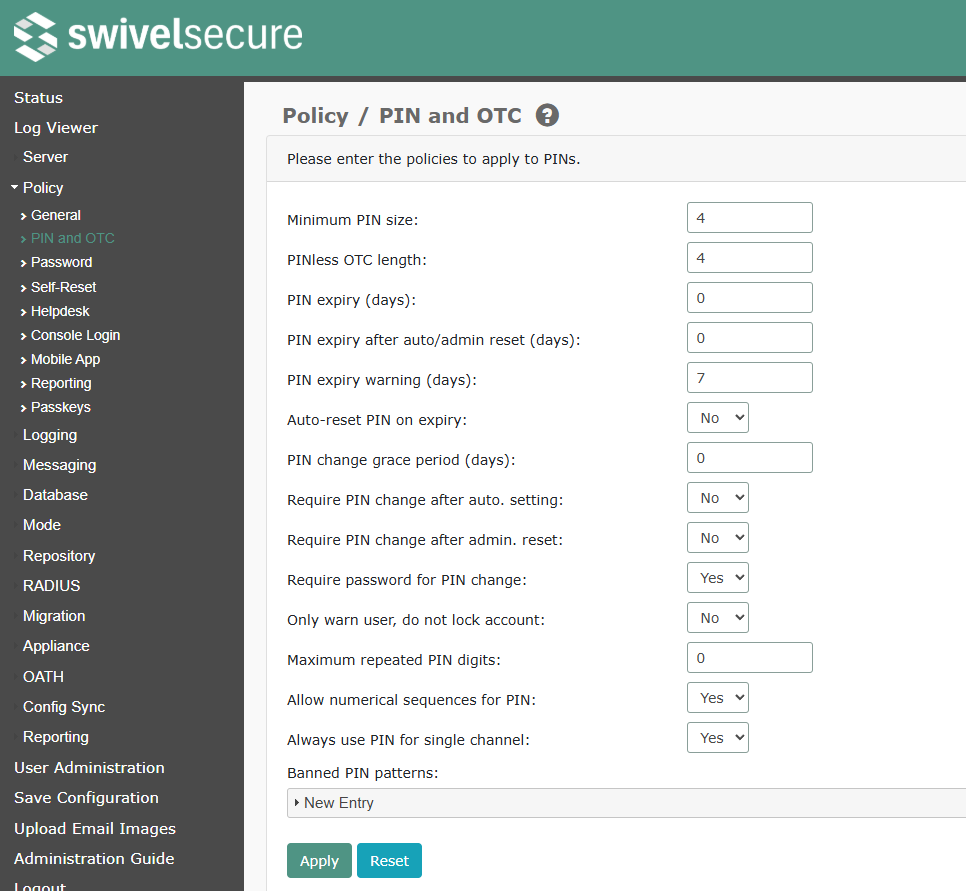
Minimum PIN size
Minimum number of digits that a user’s PIN must contain. Values between 4 and 10 inclusive are allowed. 4 is the default.
PINless OTC length
If a user has been configured to work without a PIN, this field dictates the length of the one-time code they are sent. Valid values are from 4 to 8. Default value is 6.
PIN expiry (days)
Maximum number of days for which a PIN may be used. This policy is enforced both at the point of authentication and by the PIN expiry check job. In both cases the account will be locked if the number of days since the PIN was set exceeds the maximum. 0 means that the PIN never expires.
PIN expiry after auto/admin reset
This sets the length of time a user has to change their PIN after it has been set by an admin/helpdesk user, or reset automatically.
PIN expiry warning
Number of days for which the user will be warned about the imminent expiry of their PIN. Users may be informed of the imminent expiry via alerts sent by the PIN expiry check job or by an agent that supports the display of warnings to the user.
Auto-reset PIN on expiry
If Yes, then the user’s PIN will automatically be reset at the time their PIN would expire, if the user has an alert transport configured. If this is set to No, the user’s account will become locked when their PIN expires.
PIN change grace period
This sets the length of time a user has to change their PIN after being unlocked. This only applies to PINs set by admin/helpdesk users.
Require PIN change after auto. setting
Enable/disable the requirement for a user to change their PIN following its automatic setting by the server. A user’s PIN may be set automatically in two situations: during their initial import into the user population and during a self-reset. Enabling this option requires the user to change their PIN following either of these events. The user may be informed of this requirement via an alert or by an agent that supports the display of warnings to the user.
Require PIN change after admin. reset
Enable/disable the requirement for a user to change their PIN following a reset performed by an administrator. The user may be informed of this requirement via an alert or by an agent that supports the display of warnings to the user.
Require password for PIN change
If Yes, and a Swivel password is set, then the user must provide their password when changing their PIN. If No, then the PIN can be changed knowing only the current PIN, even if the user has a password.
Only warn user, do not lock account
If Yes, then users are never locked when policy dictates, they are only sent a warning message.
Maximum Repeated PIN Digits
This sets the policy for PINs and how many repeated digits are allowed. When set to 0 it means that the all digits in the PIN must be different. A setting of one means that a single repeat is allowed, e.g. 3783. If the number of repeated digits equals the PIN length then there is no restriction on repeated digits.
Allow numerical sequences for PIN
This determines whether sequences such as 1234, 3579, 8642 are allowed as PINs.
Always use PIN for single channel
If Yes, then even if a user is designated as PINless, they are allocated a PIN for single channel authentication. Only dual channel is PINless in this case.
Banned PIN patterns
You can specify any number of PIN patterns that are not permitted. For example, 19?? will prevent users from specifying any year from the 20th century as a PIN.
Policy -> Password
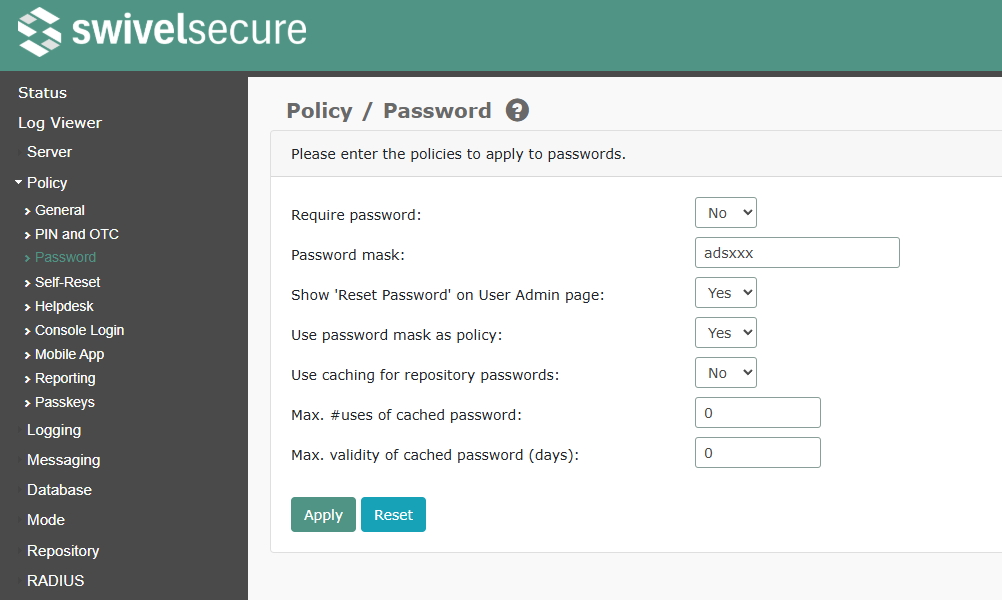
Require password
Enable/disable the requirement for a user to have a static password in addition to their PIN. Note that enabling this setting only affects the automatic setting of credentials, where it will result in a password being created in addition to a PIN. Enabling this option when existing users do not have a password will not result in them failing subsequent authentications. However, once this policy is enabled, whenever a user subsequently changes their PIN, they will be required to set a password as well.
Password mask
Mask that Swivel will use to create passwords. The password mask uses the following definitions, a = letter, d = digit, s = special character, x = any character. This is only used for automatic password generation - it does not impose the pattern on user-created passwords.
Show ‘Reset Password’ on User Admin page
This option controls whether the Reset Password button is displayed for each user. As relatively few installations use Swivel passwords, the existence of this button has caused confusion for many customers, and it is a common occurrence that the user’s Password is reset, rather than their PIN, resulting in authentication failures. Therefore, by default, this button is no longer shown. However, if this option is disabled, and any users have passwords, it will not be possible to change them using the admin console.
Use password mask as policy
Determines whether the mask defined under the Password Mask setting will be enabled or not.
Use caching for repository passwords
If Yes, then when users successfully authenticate using repository passwords, the password is cached securely, using a one-way hash
Max. #uses of cached password
The number of times a cached password can be used before it must be validated against the repository. 0 means no limit.
Max. validity of cached password (days)
The maximum duration a password can be cached before it must be refreshed from the repository. 0 means indefinitely.
Policy -> Self-Reset
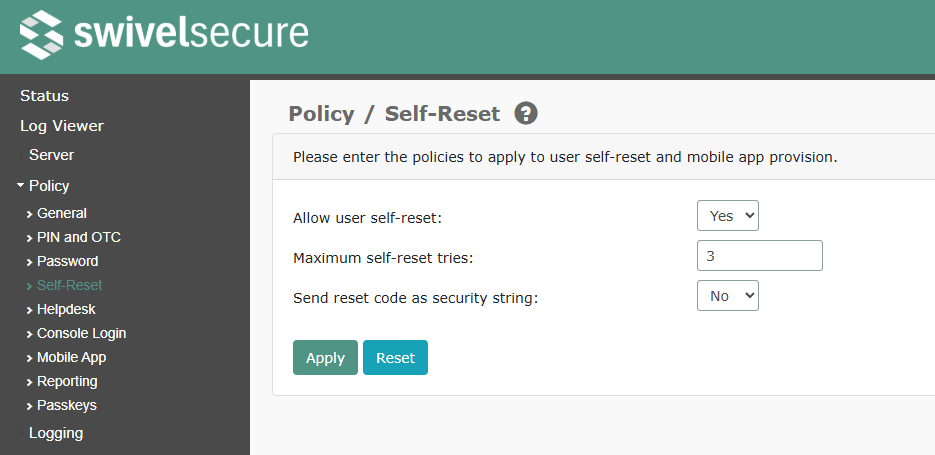
Allow user self-reset
Enable/disable the ability of users to perform a self-reset. When enabled, users given access to a suitable agent will be permitted to reset their PIN without the involvement of an administrator. Following submission of their username the user will be sent an alert containing a one-time reset code.
Maximum self-reset tries
Maximum number of consecutive failed self-reset attempts a user can make before their account is locked. Setting this value to ‘0’ allows infinite attempts.
Send reset code as security string
Alerts are typically sent via email (alert transport). However you may wish to restrict reset codes to a specific device by sending them to a specific device, like a security string.
Policy -> Helpdesk
Helpdesk Users can manage other repositories
If this is No, then helpdesk users can only manage users from the same repository as they belong to. If Yes, then helpdesk users can manage users from other repositories as well. Note that you can apply greater control over which helpdesk groups can manage which other groups by using the Repository Helpdesk Groups feature.
Helpdesk can reset PINs
(Boolean setting)
Helpdesk Users can administer editable repositories
Editable repository types are XML, ADAM and Writeable LDAP. If this is enabled, then helpdesk users are allowed to create and delete users in these repositories. If not, they can only manage existing users.
Helpdesk can view Status page
Yes/No
Helpdesk can view Log Viewer page
Yes/No
Helpdesk can view reports
Yes/No
Helpdesk can manage OATH tokens
Yes/No
Helpdesk can edit user policy
Yes/No
Helpdesk can run User Sync
Yes/No
Policy -> Console Login
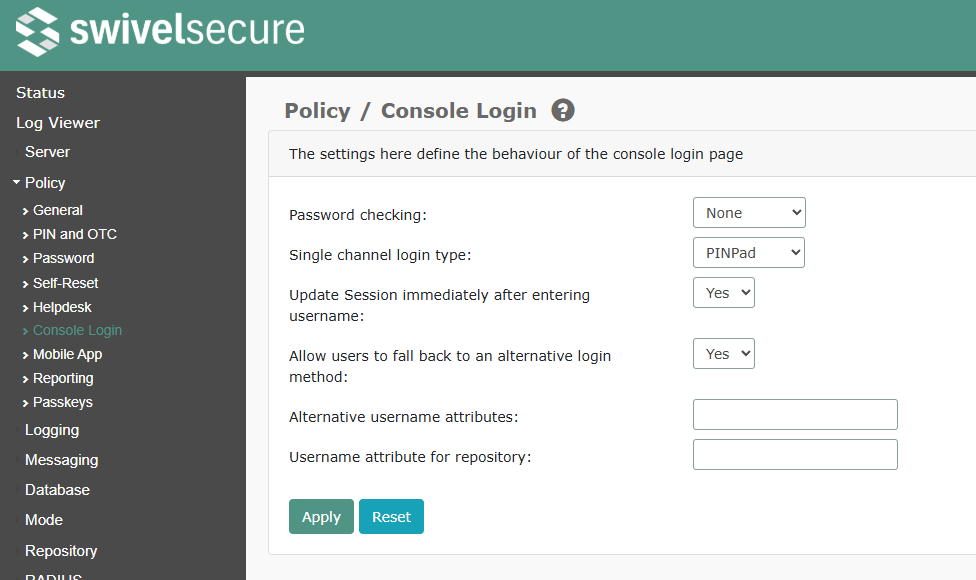
This page configures the admin console login policy
Password checking
Use this option to determine what password is checked
None: No password is checked or shown
Sentry: Entered password is checked against the Sentry password, if any
Repository: Entered password is checked against the repository (e.g. Active Directory) password
Single channel login type
Use this option to determine what type of login is used:
None: It is assumed that the user has a one-time code from some other source
TURing
PINpad
PicturePad
PINpad2
Passkey
Update TURing immediately after entering username
Use this option to enable or disable automatic display of TURing image after entering the username. The Single Channel option must not be set to None for this option to be effective. If this option is set to No, but Single Channel is enabled, you must click the “Start Session” button to display a TURing or other image.
Allow users to fall back to an alternative login method
This option only applies to Passkey login. If enabled, and the user cannot use a Passkey, they can use Turing instead.
Alternative username attributes
If not blank, any of the specified attributes will be checked to identify the user
Username attribute for repository
The attribute used to identify the user to the repository, if Repository password is enabled.
Policy -> Mobile App
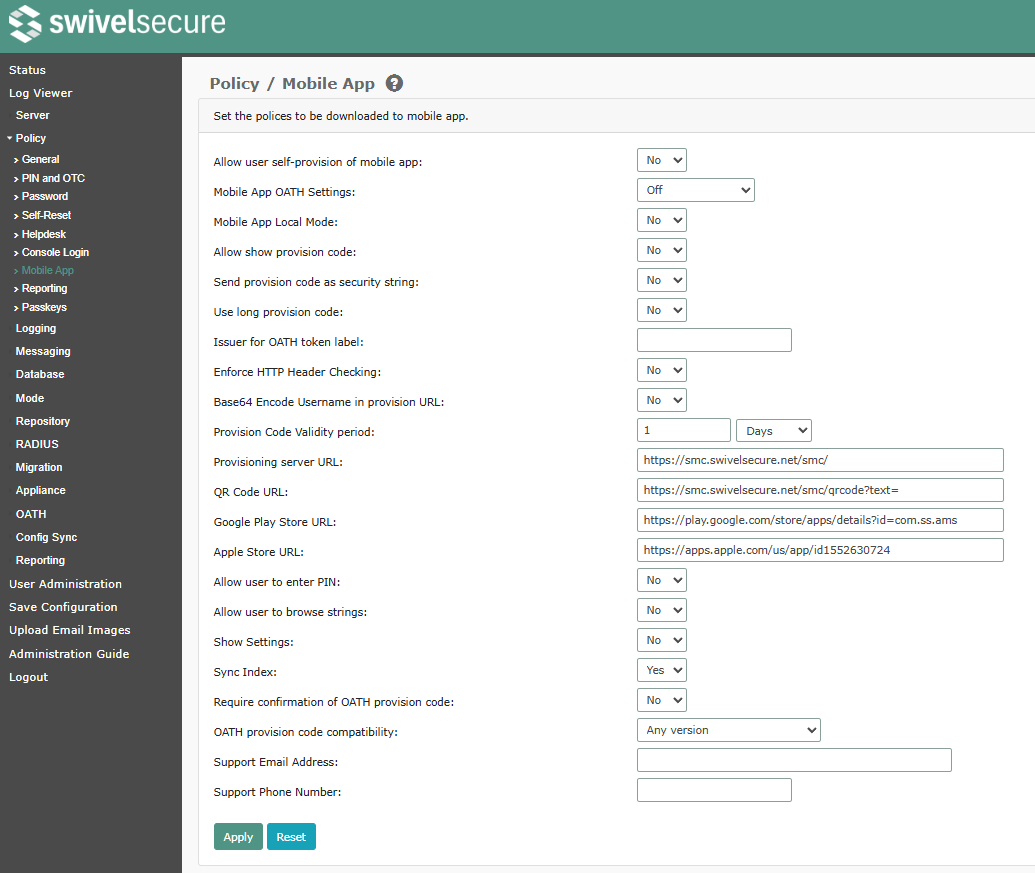
Allow user self-provision of mobile app
Enable/disable the ability of users to perform a self-provision. When enabled users given access to a suitable agent will be permitted to reprovision their mobile by requesting a new mobile client provision code.
Mobile App OATH Settings
Determines whether mobile app uses OATH mode: * Off: mobile app doesn’t use OATH mode * Sentry: Sentry-compatible OATH provision URL sent * Standards Mode: OATH URL compatible with standard Google / Microsoft authenticator settings sent * By User Rights:
User has mobile app right: Sentry-compatible URL sent
User has OATH right only: standards mode URL sent
Mobile App Local Mode
If Yes, then the mobile app is sent a unique code that makes it capable of generating its own security strings, and so does not need to refer to the Swivel server to retrieve new strings.
Allow show provision code
If Yes, admin / helpdesk users can view the user’s current provision code, if any.
Send provision code as security string
Alerts are typically sent via email (alert transport). However you may wish to restrict provision codes to a specific device by sending them to a specific device, like a security string.
Use long provision code
If No, the provision code is a 10-digit string. If Yes, it is a 40-digit hexadecimal string
Issuer for OATH token label
For standards-mode OATH, this is the issuer setting sent in the URL.
Enforce HTTP Header Checking
If Yes, then Swivel will check certain HTTP headers sent from the Mobile app, to confirm that request is sent from the same phone as previous requests.
Base64 Encode Username in provision URL
If Yes, the username is sent as Base64 encoded in the provision URL. This is for future enhancement, and should not currently be enabled.
Provision Code Validity period
Determines how long a provision code is valid.
Provisioning server URL
Contains the URL to the Swivel Mobile Connector application that allows automatic provision of the mobile app.
NOTE: This URL is set by Swivel Secure, and should not be modified unless you are advised to do so by Swivel Secure support, or your reseller.
QR Code URL
Contains the URL to the Swivel Mobile Connector application that generates a QR code.
NOTE: This URL is set by Swivel Secure, and should not be modified unless you are advised to do so by Swivel Secure support, or your reseller.
Allow user to enter PIN
If Yes, then the user can enter their PIN directly in the mobile app, and it will display their required one-time code. If No, then the mobile app will display the next security string and the user must calculate their one-time code from that.
Google Play Store URL
The URL for the Swivel Secure Mobile App.
This should be https://play.google.com/store/apps/details?id=com.swivelsecure.authenticator. If it is set to a different URL, you should update it.
Apple Store URL
The URL for the Swivel Secure Mobile App.
This should be https://apps.apple.com/us/app/swivel-secure-authenticator/id6782262444. If it is set to a different URL, you should update it.
Allow user to enter PIN
Is Yes, the user can enter the PIN into the mobile app, and they will be shown their OTC.
Allow user to browse strings
If Yes, then the mobile app will display buttons allowing the user to view previous or later security strings. If No, then only the current string will be shown.
Show Settings
Determines whether or not the mobile app allows the user to view and change their settings.
Sync Index
If enabled, the mobile app automatically synchronizes the security string index with the Swivel server. This requires connection to the server.
Support Email Address
If specified, the mobile app will display this email address for support from their company.
Support Phone Number
If specified, the mobile app will display this phone number for support from their company.
Policy -> Reporting
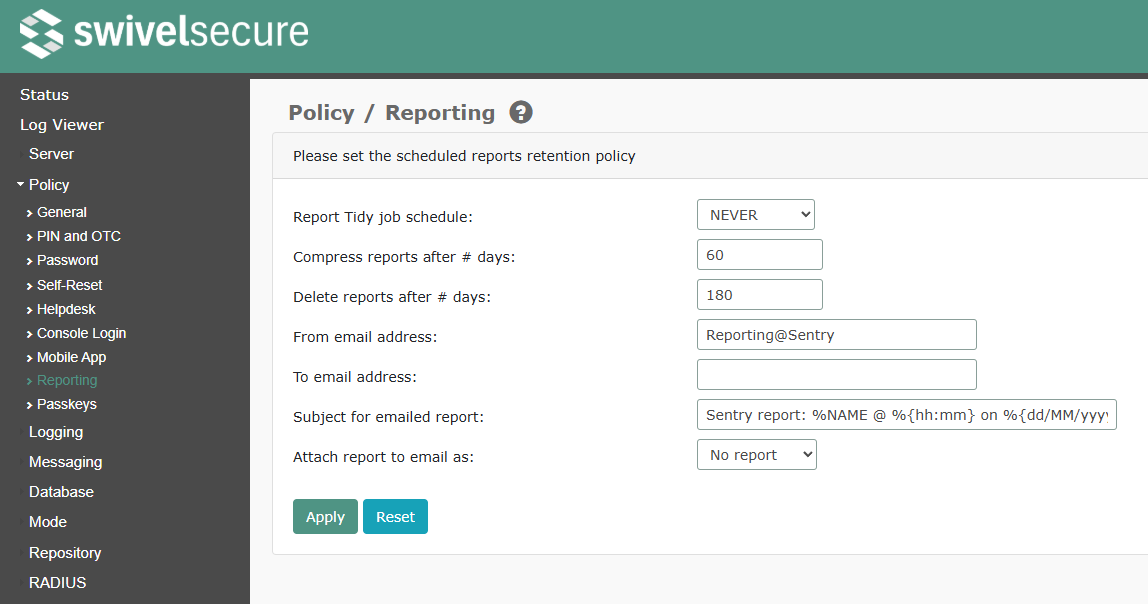
Report Tidy job schedule
Determines when the job to clear down old reports is run. See Scheduled Jobs for more information on setting scheduled tasks.
Compress reports after # days
When the report tidy job runs, determines how long reports are kept before being compressed (zipped).
Delete reports after # days
When the report tidy job runs, determines how long reports are kept before being deleted.
From email address
Sets the email address that reports appear to come from.
To email address
Sets the email address that scheduled reports are sent to.
Subject for emailed report
Sets the subject line for emailed scheduled reports. The following place holders can be used:
%NAME - the name of the report. %{hh:mm} - the time the report was generated. %{dd/MM/yyyy} - the date the report was generated. Note that you can change the date format, and that month uses capital M, as opposed to lowercase m for minutes.
Attach report to email as
Determines how the report should be emailed: within the email body, as an attachment, or as a zipped attachment.
Policy -> Passkeys
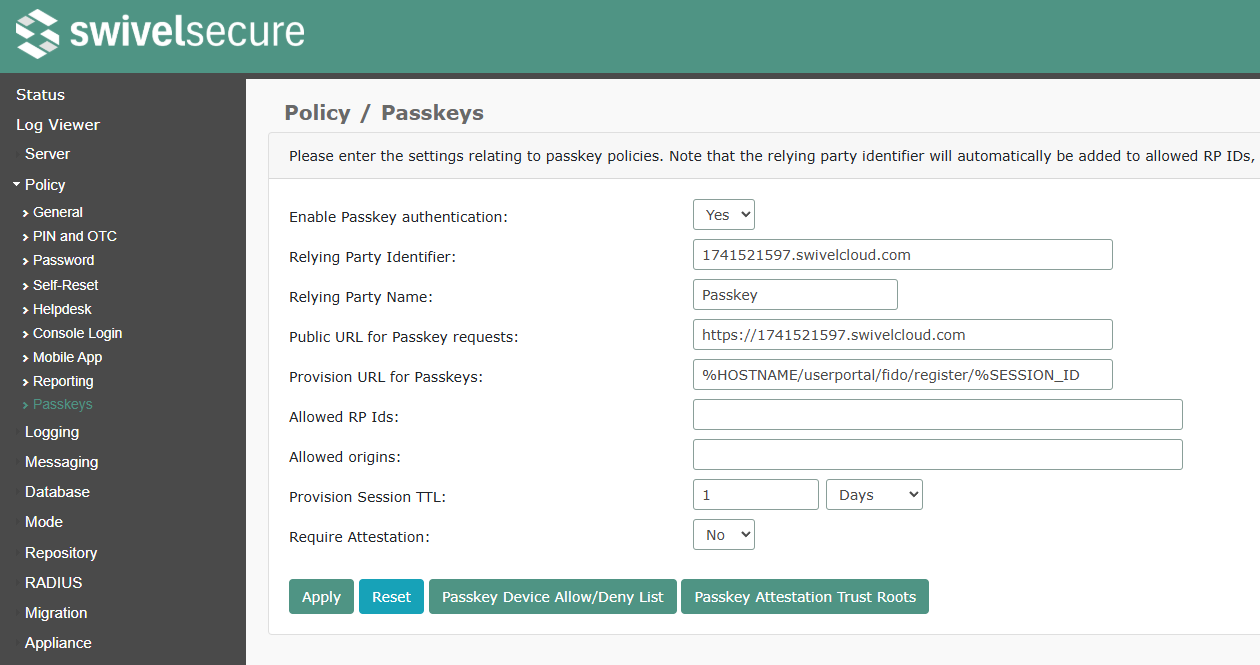
This section is used to configure passkey policy. For more information on using passkeys, see the 4.3 technical notes.
Enable Passkey authentication
If Yes, passkeys are enabled for authentication
Relying Party Identifier
The qualified name of the RPID sent in passkey requests
Relying Party Name
The relying party name send in passkey requests
Public URL for Passkey requests
The origin value for passkey requests
Provision URL for Passkeys
The URL sent in passkey provision messages. The default value will normally be correct: %HOSTNAME/userportal/fido/register/%SESSION_ID
Allowed RP Ids
A list of allows RPIDs. The Relying party identifier above is always included, so this can normally be left blank
Allowed origins
A list of allow origin URLS. The public URL above is always included, so this can normally be left blank. However, if you want to add passkeys from user administration, you might also need to add the internal URL (not including “/sentry”) for Sentry Core.
Provision Session TTL
The length of time a passkey provision session is valid
Require Attestation
Whether attestation is required when registering passkeys. Unless you are familiar with how attestation works, you are advised to leave this disabled.
TODO: device allow list, attestation trust roots.