Microsoft Entra ID External Authentication Method (OIDC) Integration
Introduction
This article describes how to use AuthControl Sentry as an external authentication method (also called external MFA) for Microsoft Entra ID.
When a user signs in to Microsoft 365, the Azure portal or any other application protected by Entra ID, and a Conditional Access policy asks for multi-factor authentication, Entra ID can send the user to AuthControl Sentry to complete that step. Sentry authenticates the user with one of its authentication methods (for example TURing, PINpad or a passkey) and returns a signed OpenID Connect (OIDC) token that tells Entra ID how the user authenticated.
Note
This integration requires AuthControl Sentry 4.3 or later, which adds OIDC support to Sentry SSO. It uses OIDC rather than SAML, so it is separate from the Microsoft ADFS and Office 365 SAML integrations.
How it works
The user signs in to Entra ID with their password.
A Conditional Access policy requires multi-factor authentication, so Entra ID offers the external method, shown as “Approve with Swivel AuthControl Sentry”.
Entra ID redirects the user’s browser to Sentry (
/sentry/oidc/authorize) with anid_token_hintthat identifies the user.The user authenticates to Sentry.
Sentry redirects the browser back to Entra ID with an ID token. Entra ID checks that the token’s
acrandamrclaims show multi-factor authentication and lets the user in.
Prerequisites
AuthControl Sentry 4.3 or later, with Sentry SSO enabled and licensed.
A public DNS name for Sentry (referred to below as
<FQDN_OF_SENTRY_SERVER>, for examplesentry.mycompany.com) with a certificate that is trusted by browsers. Entra ID reads Sentry’s OIDC discovery document and keys from this name, and users’ browsers are redirected to it, so it must be reachable from the internet over HTTPS.A Microsoft Entra ID tenant that is licensed for Conditional Access (Microsoft Entra ID P1 or higher).
An administrator in Entra ID who can create app registrations, manage authentication methods and create Conditional Access policies, for example Application Administrator, Authentication Policy Administrator and Conditional Access Administrator.
Every Entra ID user who will use the method needs a matching user in Sentry, with the Sentry user name set to the user’s Entra ID user principal name (for example
alex.example@mycompany.com). Sentry uses this name to pre-fill the user name for the sign-in. Users must also have the rights and PIN, passkey or other credentials for an authentication method that scores enough points (see section 3).
Note
Entra ID allows only a small number of external authentication methods per tenant. If you already have providers configured, check that there is room before you start.
1. Register an application in Entra ID
Entra ID needs an application registration to represent the external method.
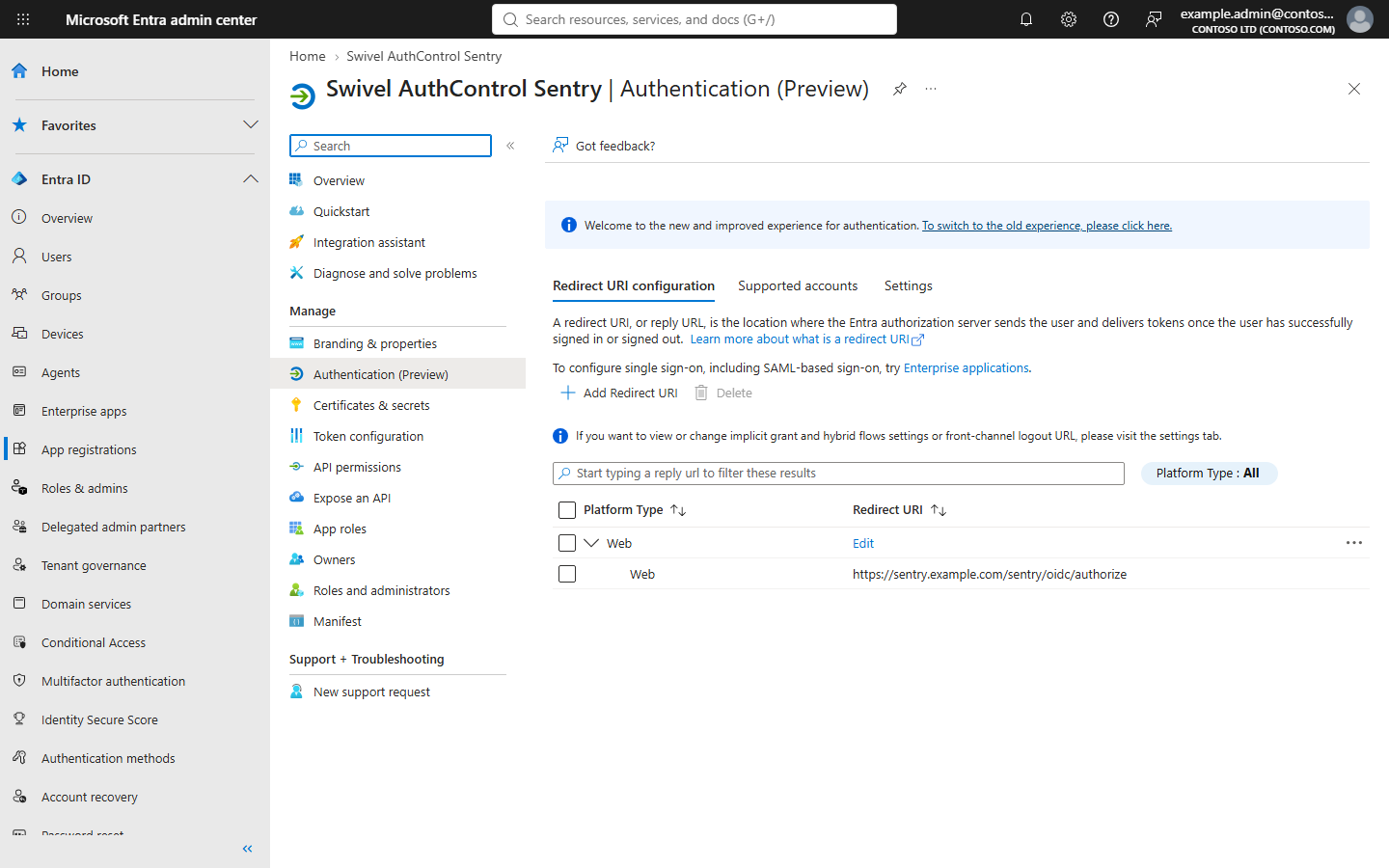
In the Microsoft Entra admin center, go to Entra ID -> App registrations and select New registration.
Enter a name, for example
Swivel AuthControl Sentry, and choose Accounts in this organizational directory only.Set the redirect URI platform to Web and the value to the Sentry authorization endpoint:
https://<FQDN_OF_SENTRY_SERVER>/sentry/oidc/authorizeSelect Register. Note the Application (client) ID and the Directory (tenant) ID shown on the Overview page. You will need both.
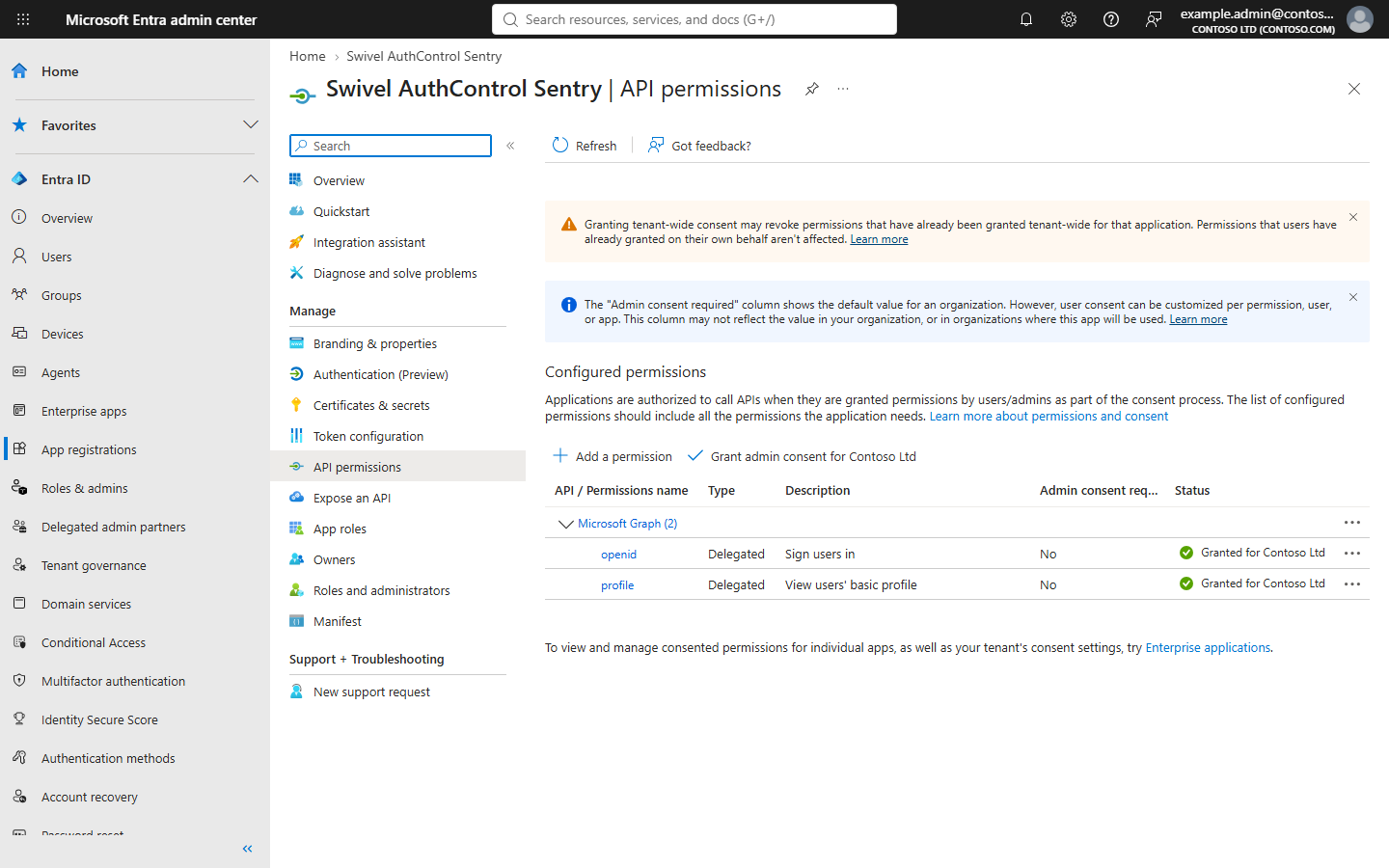
Go to API permissions, select Add a permission -> Microsoft Graph -> Delegated permissions and add
openidandprofile.Select Grant admin consent for your organisation. The status of both permissions must show “Granted”.
2. Create the application in the Sentry SSO console
Log in to the Sentry SSO administration console and go to Applications.
Select Add Application and choose the Microsoft Entra application type. This pre-fills the Microsoft redirect URI and the settings Microsoft requires.
Complete the form using the values below.
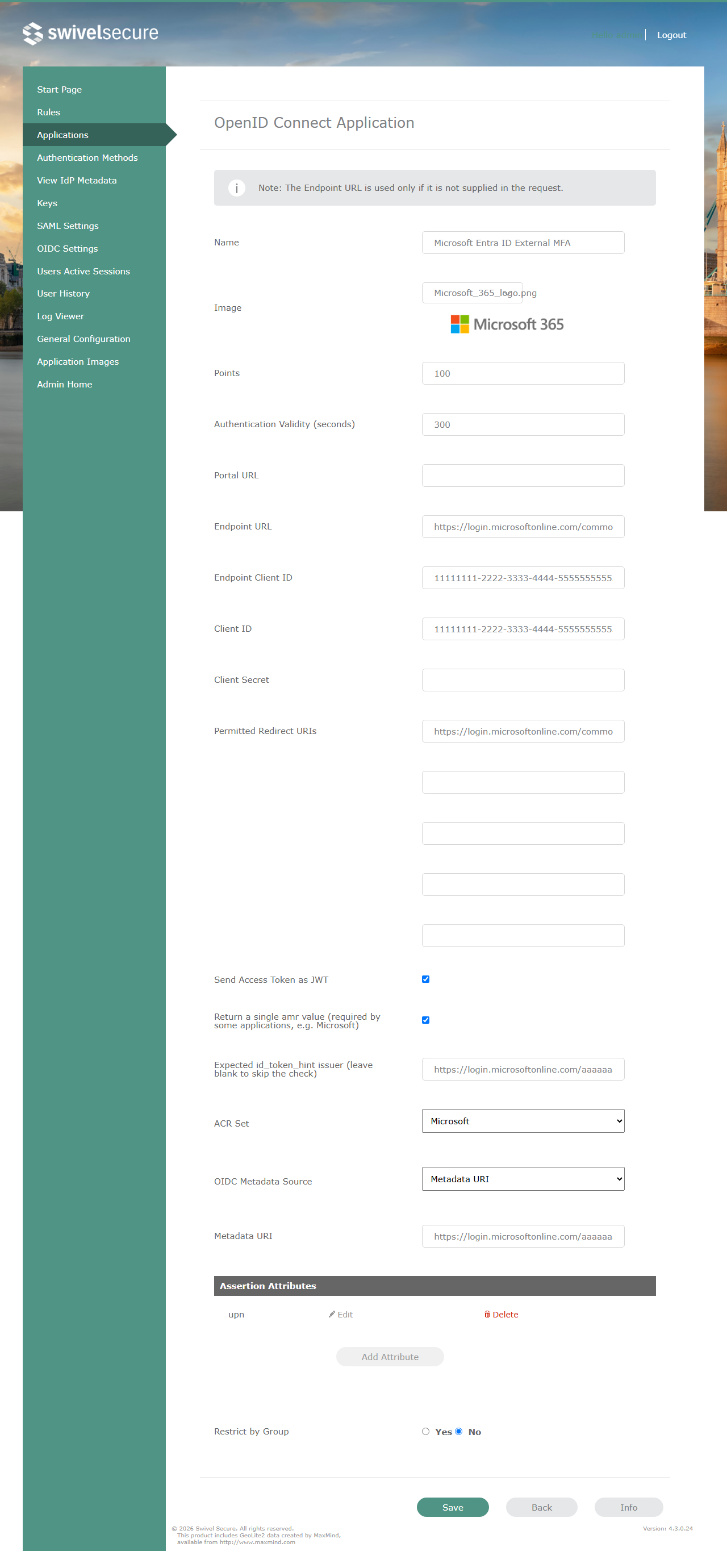
Setting |
Value |
|---|---|
Name |
A name for the application, for example |
Points |
The points a user must score to authenticate to this application, for example |
Client ID |
The Application (client) ID from the Entra ID app registration. |
Endpoint Client ID |
The same Application (client) ID. |
Permitted Redirect URIs |
|
Return a single amr value |
Ticked. Microsoft requires this. |
Expected id_token_hint issuer |
|
ACR Set |
Microsoft. This returns the |
OIDC Metadata Source |
Metadata URI. |
Metadata URI |
|
Restrict by Group |
Optional. Select Yes to limit the application to users in chosen Sentry groups. |
Select Save.
Important
The Client ID in Sentry, the Client ID you enter in Entra ID in section 4, and the Application (client) ID of the app registration must all be the same value. Entra ID sends this value as the client_id of the request, and Sentry rejects the id_token_hint if its audience (the Application ID) does not match the Client ID configured on the application.
Important
The Metadata URI tells Sentry where to find the signing keys of your Entra ID tenant, so that it can verify the id_token_hint. If it is left blank, Sentry rejects every id_token_hint that Entra ID sends.
3. Check the authentication methods and ACR set
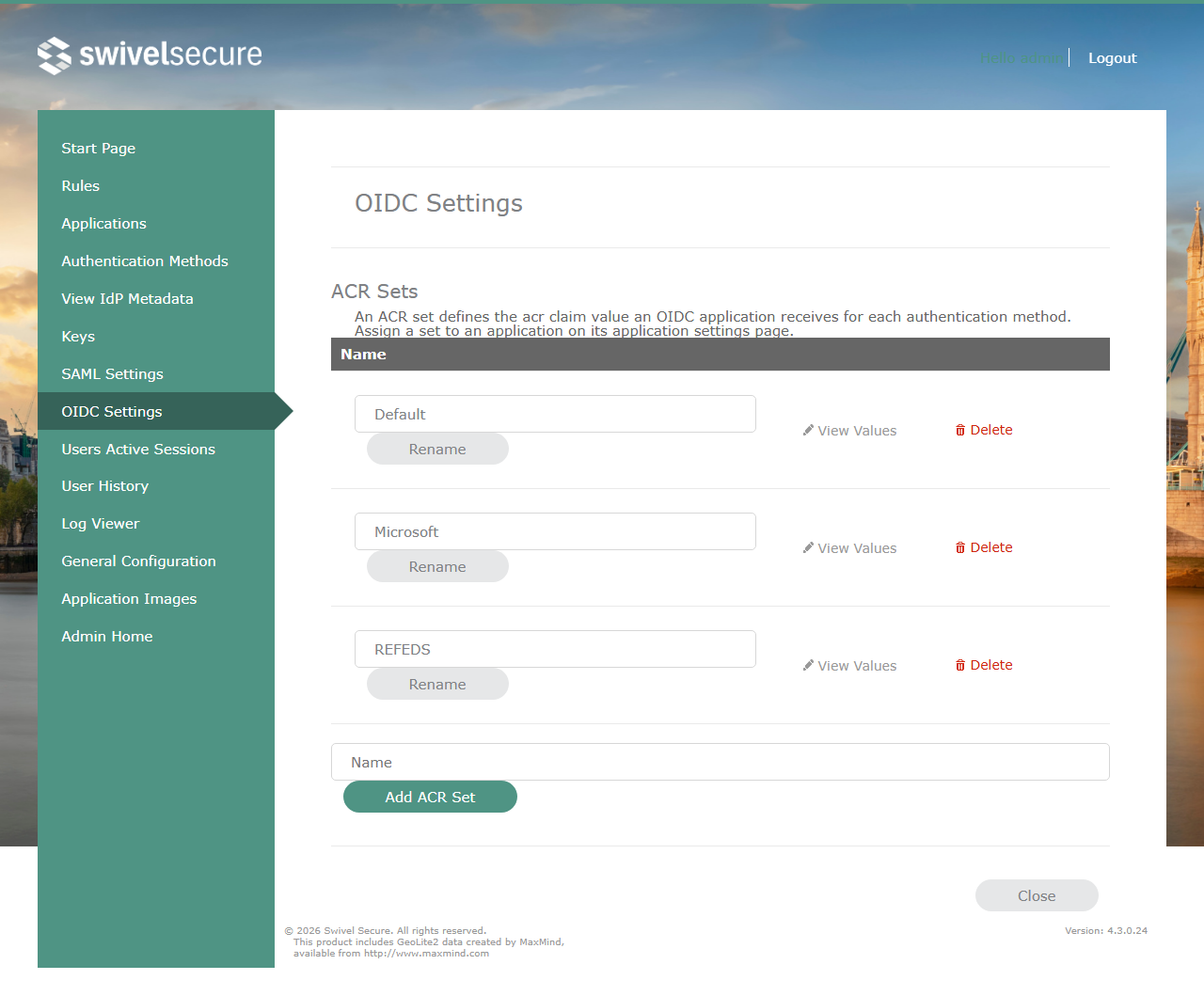
Microsoft only accepts the external method as multi-factor authentication if the returned token carries an acr claim of possessionorinherence and an amr claim that Microsoft recognises as a strong method.
In the SSO console, go to OIDC Settings. The Microsoft ACR set returns the
acrvaluepossessionorinherence. Use View Values to check it.
Go to Authentication Methods. For each method you want users to use with Entra ID, check that:
its Points reach at least the points set on the application, and
it has an OIDC
amrvalue that Microsoft accepts, for exampleotpfor TURing and PINpad 2.
Methods that score fewer points than the application requires are not offered to the user.
Note
Entra ID asks for a specific set of amr values. A method whose amr value is not one of them does not satisfy the Conditional Access requirement.
Hide the password field
Entra ID has already checked the user’s password before it redirects them to Sentry, so the Sentry login does not need to ask for it again.
In the SSO console, go to General Configuration.
Clear Show the password field and select Save.
Sentry then shows only the one-time code field, the authentication method and, for TURing, the image.
Note
This setting belongs to General Configuration, which applies to the whole of Sentry SSO and not just this application. Do not clear it if other applications on the same SSO rely on users typing their password at the Sentry login.
4. Add the external authentication method in Entra ID
In the Microsoft Entra admin center, go to Entra ID -> Authentication methods -> Policies and select Add external MFA.
Complete the form:
Setting
Value
Name
The name users will see, for example
Swivel AuthControl Sentry. It cannot be changed after you save.Client ID
The Application (client) ID from section 1 (the same value as the Client ID in Sentry).
Discovery Endpoint
https://<FQDN_OF_SENTRY_SERVER>/sentry/.well-known/openid-configurationApp ID
The Application (client) ID from section 1.
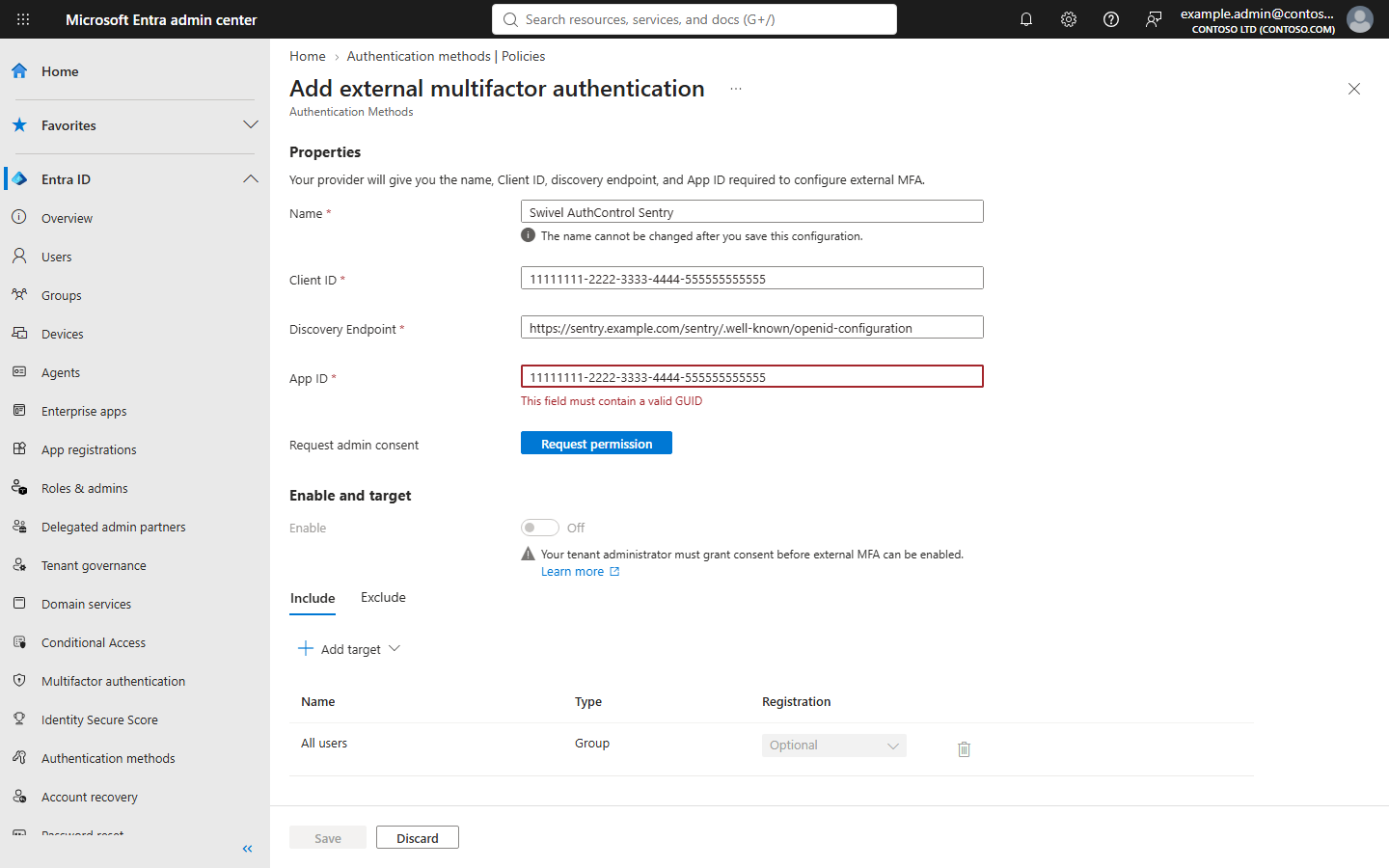
Select Request permission and confirm that admin consent is granted.
Set Enable to On. Under Include, add the users or groups that may use the method, and set Registration as required by your policy.
Select Save.
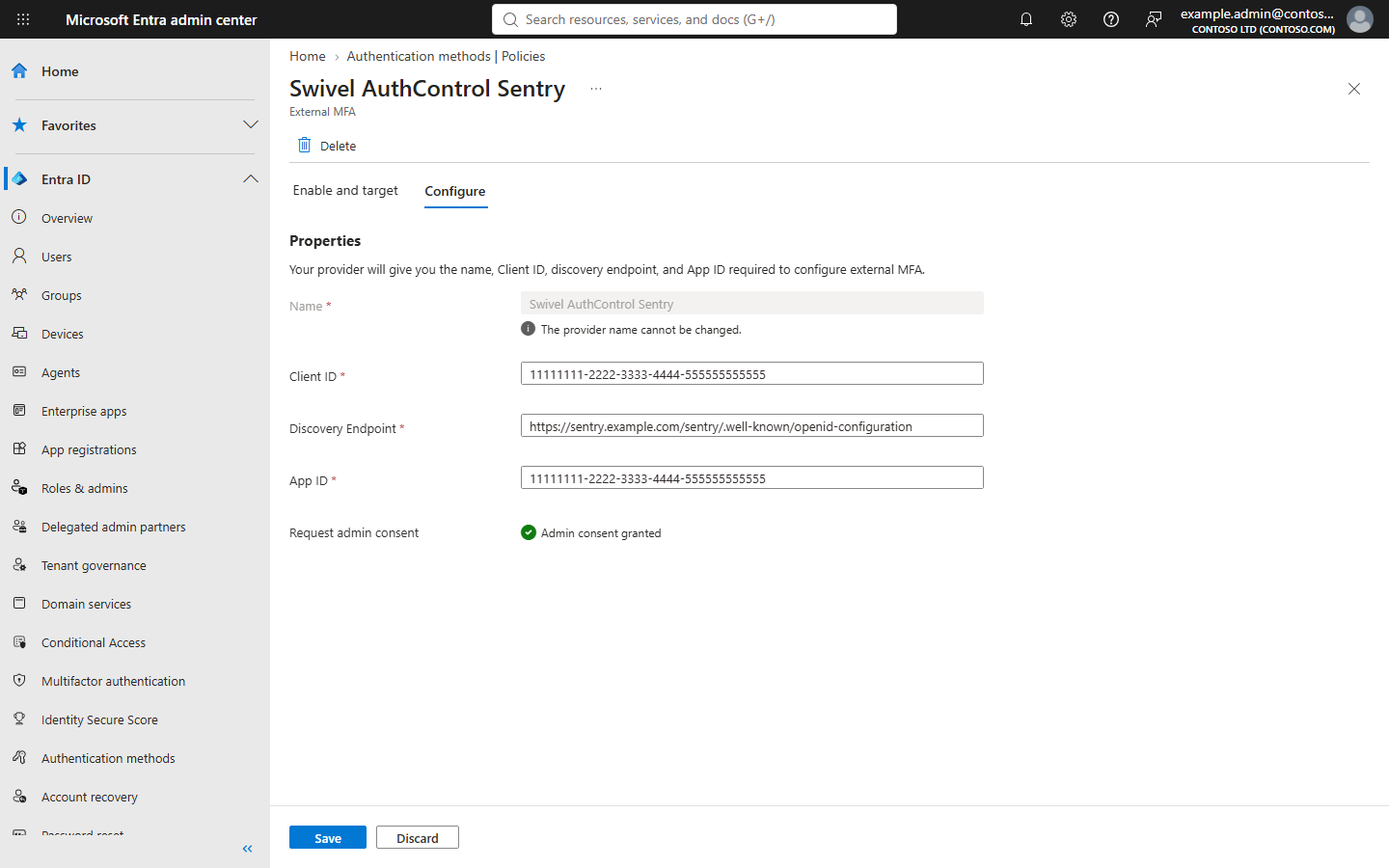
The saved method shows the values on its Configure tab.
Note
Open https://<FQDN_OF_SENTRY_SERVER>/sentry/.well-known/openid-configuration in a browser to check the discovery document. Its issuer and endpoint URLs must use the host name that Entra ID reaches Sentry on, and the keys it lists must be published. If the discovery document shows a different host name, correct the SSO Application Root URL and restart Tomcat before continuing.
5. Require MFA with Conditional Access
The external method is offered to a user when Entra ID asks that user for multi-factor authentication.
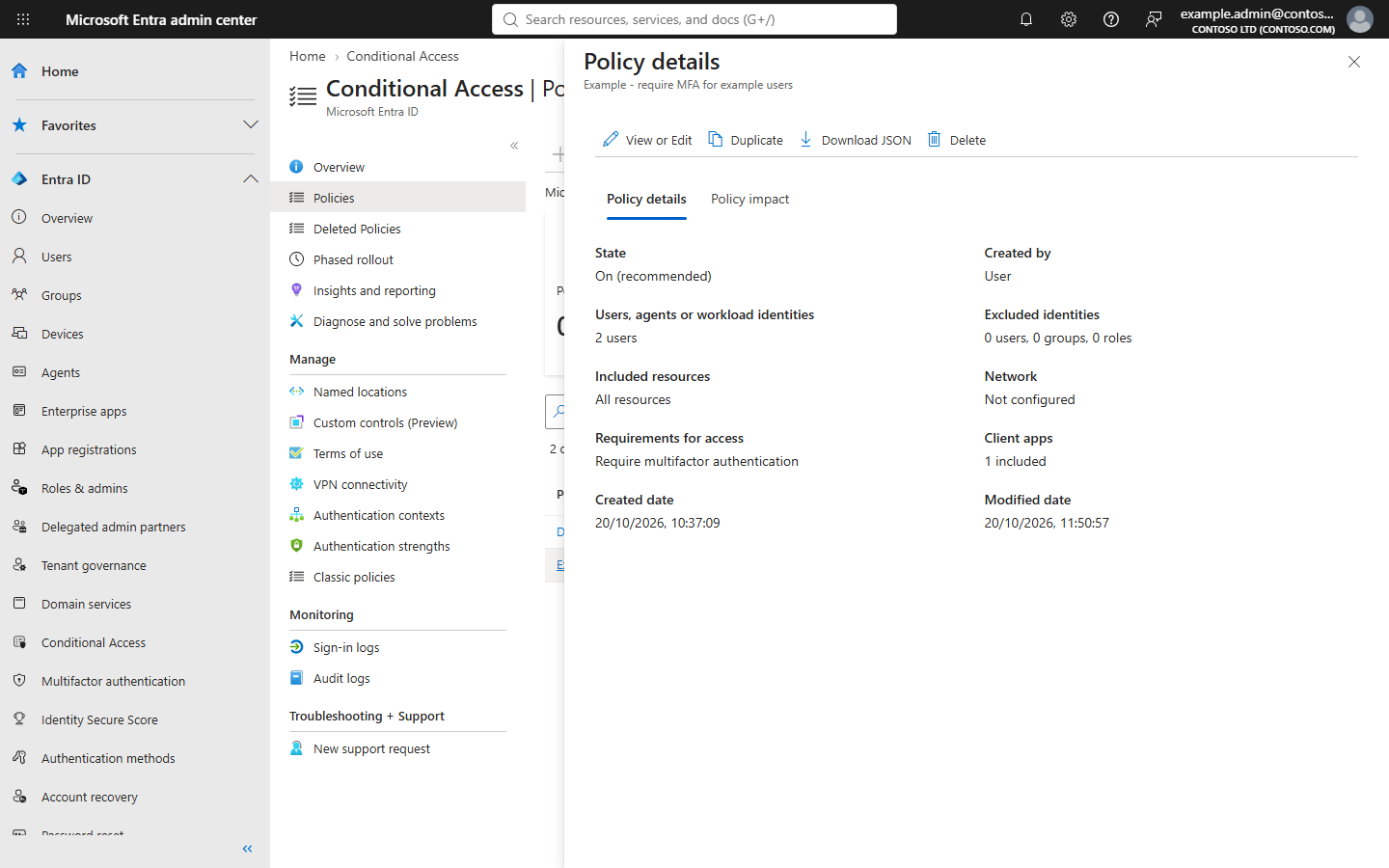
Go to Entra ID -> Conditional Access -> Policies and select New policy.
Under Users, include the users or groups from section 4.
Under Target resources, choose the applications to protect.
Under Grant, select Require multifactor authentication.
Set Enable policy to On and select Create.
Warning
Test with a small group first. A user who is in scope and cannot complete the external method cannot sign in.
6. What the user sees
First sign-in: register the method
A user with no multi-factor method registered is asked to set one up the first time they sign in.
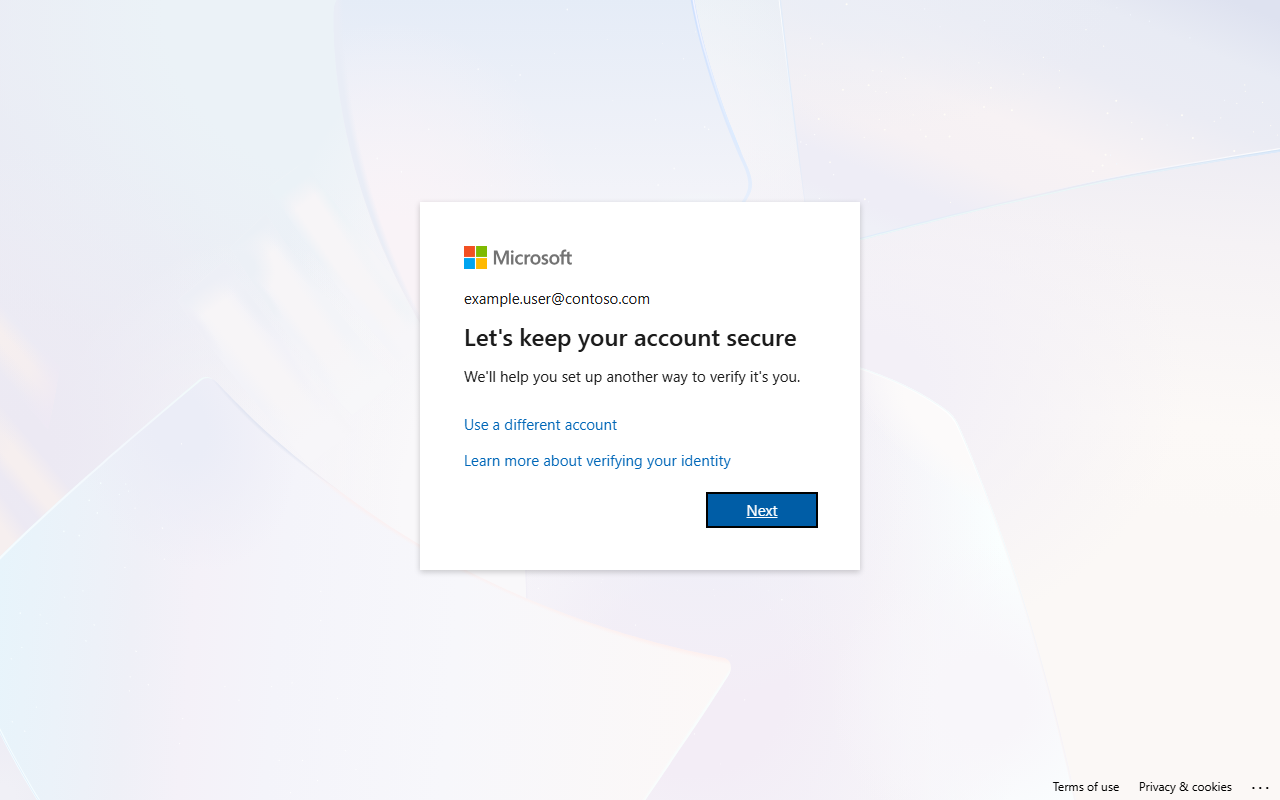
The user signs in with their password and sees Let’s keep your account secure. They select Next.
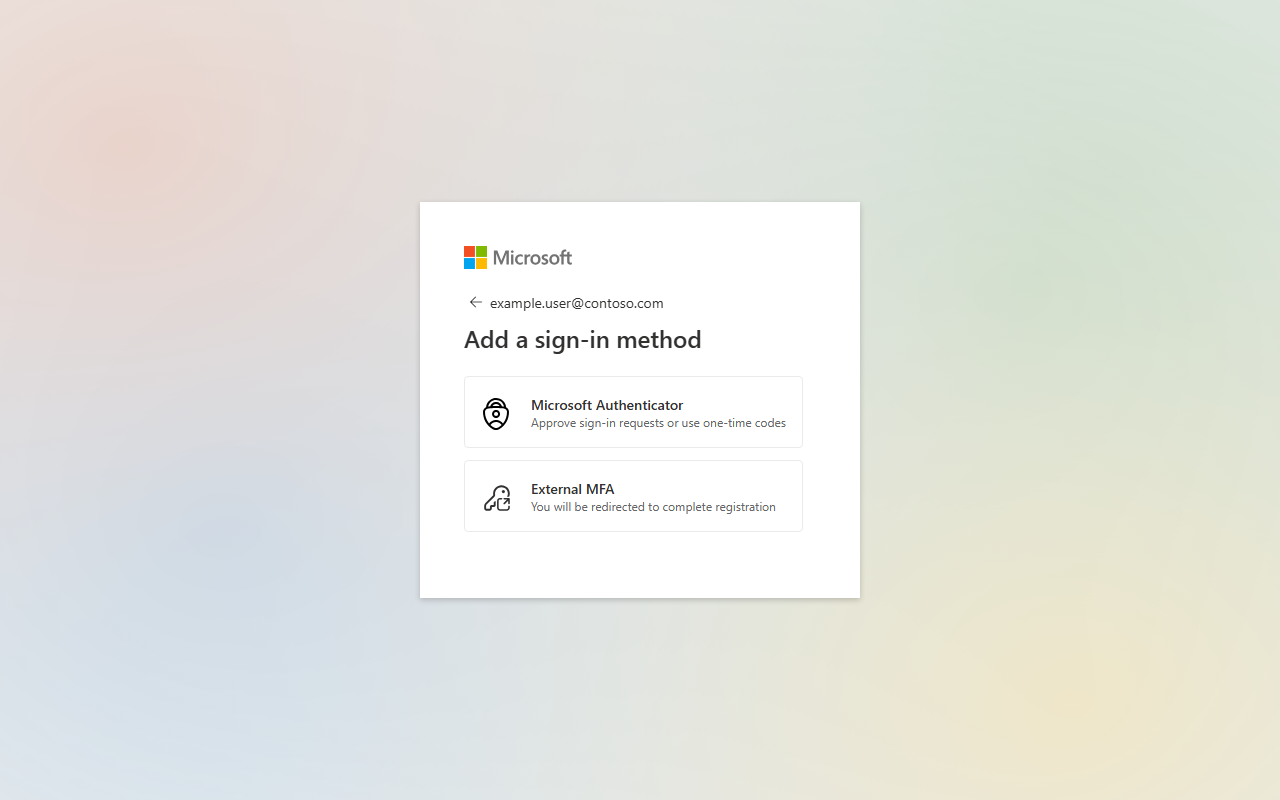
On Add a sign-in method the user chooses External MFA.
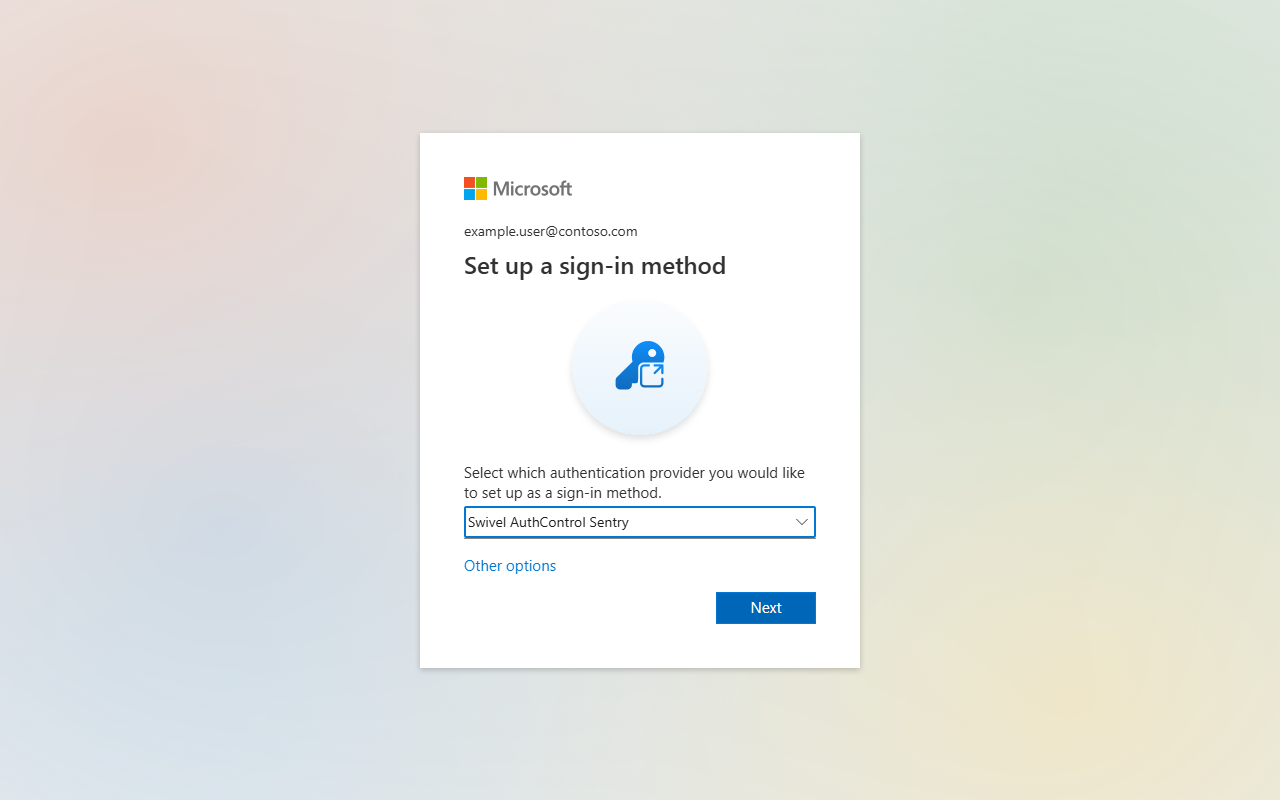
The user selects Swivel AuthControl Sentry from the list of providers and selects Next.
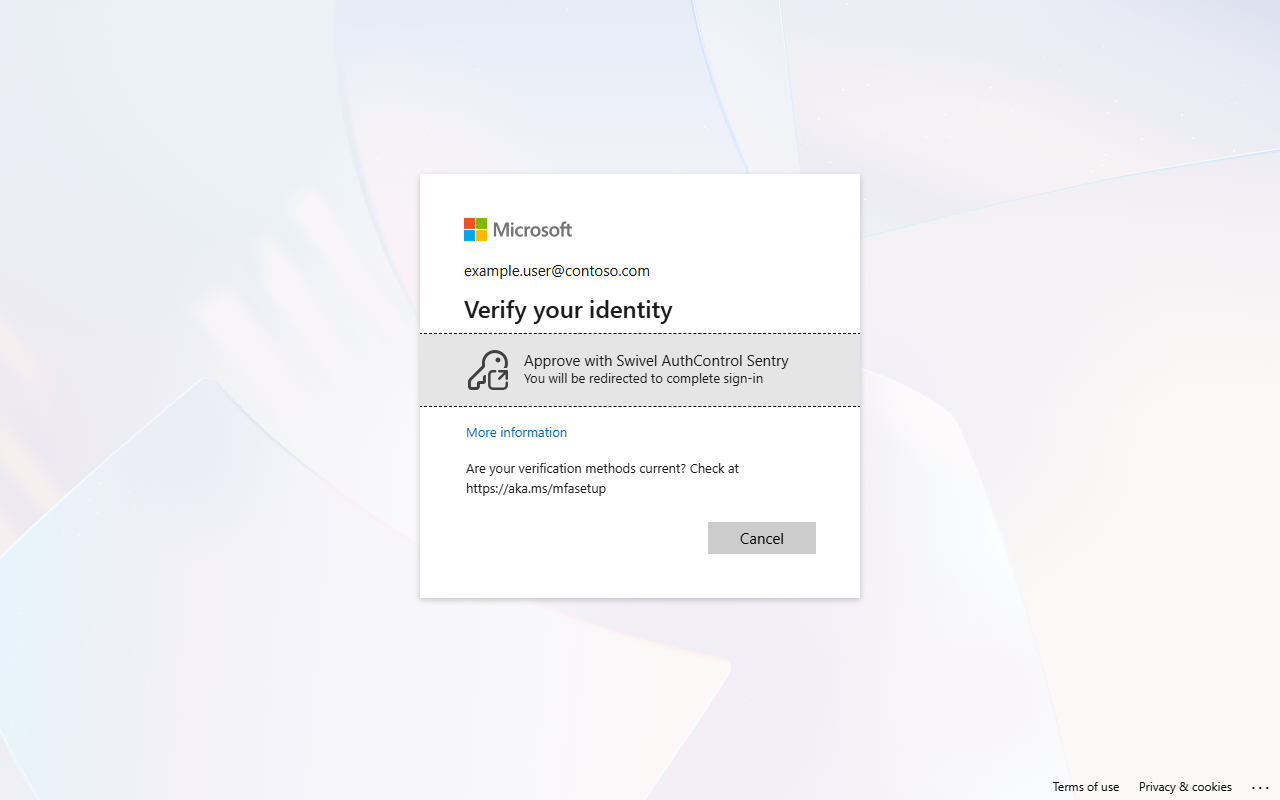
Entra ID asks the user to verify their identity with the new method. The user selects Approve with Swivel AuthControl Sentry, completes the Sentry sign-in described below, and is returned to Entra ID.
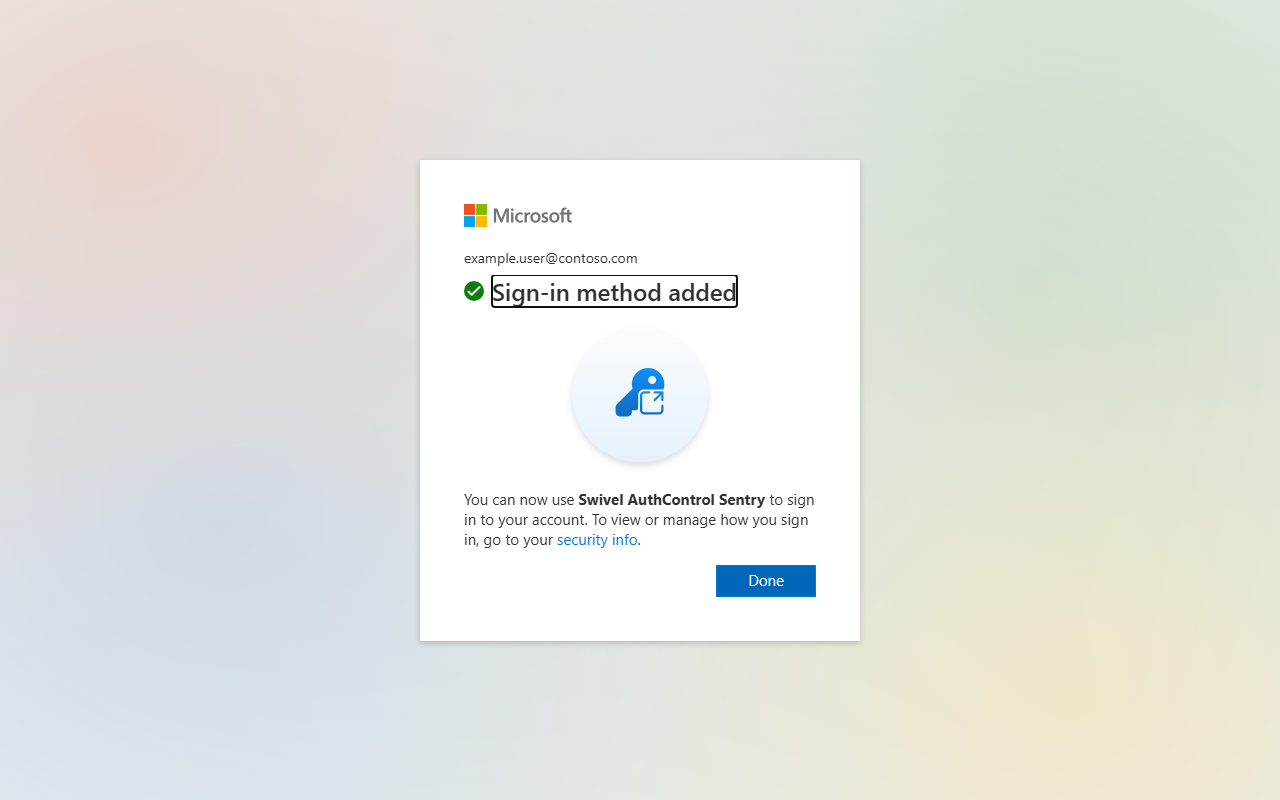
Entra ID confirms that the sign-in method was added.
Sign in
On every later sign-in that needs multi-factor authentication, Entra ID shows Verify your identity with Approve with Swivel AuthControl Sentry straight after the password. The registration steps above are not repeated.
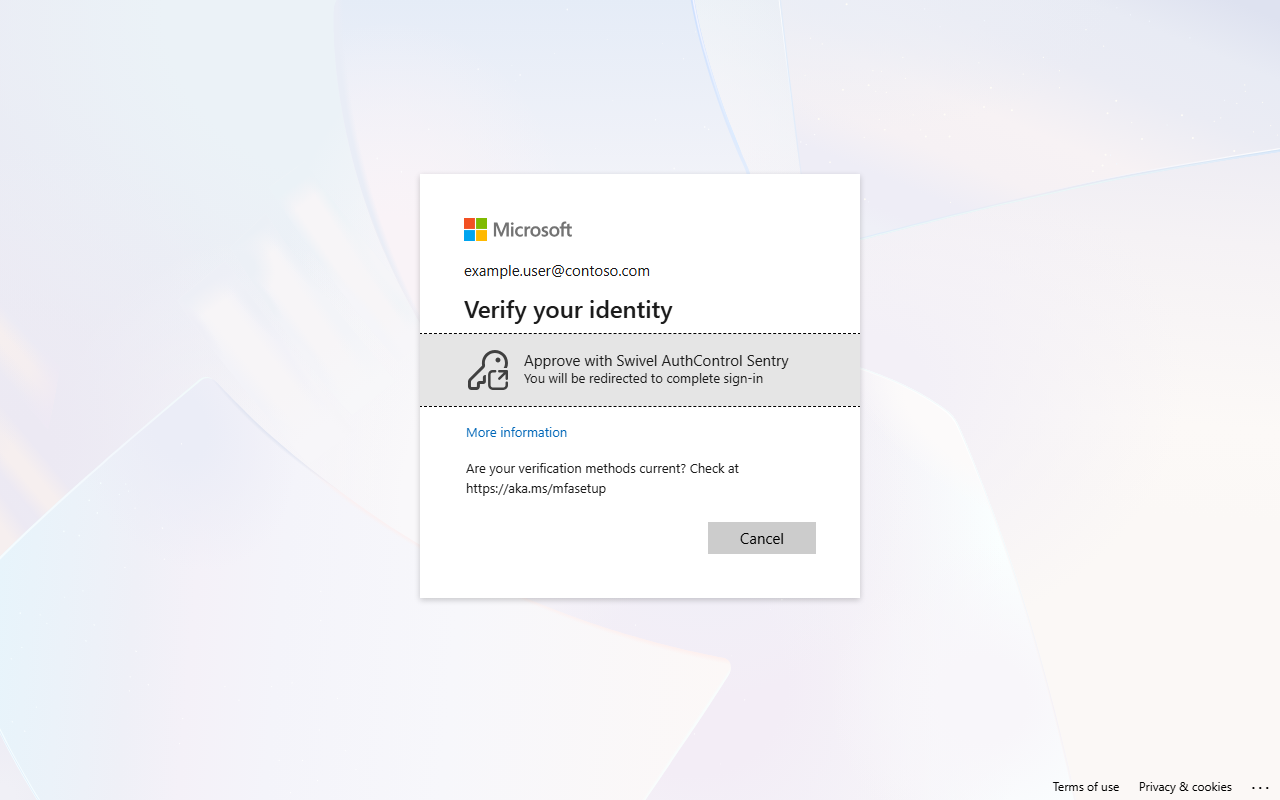
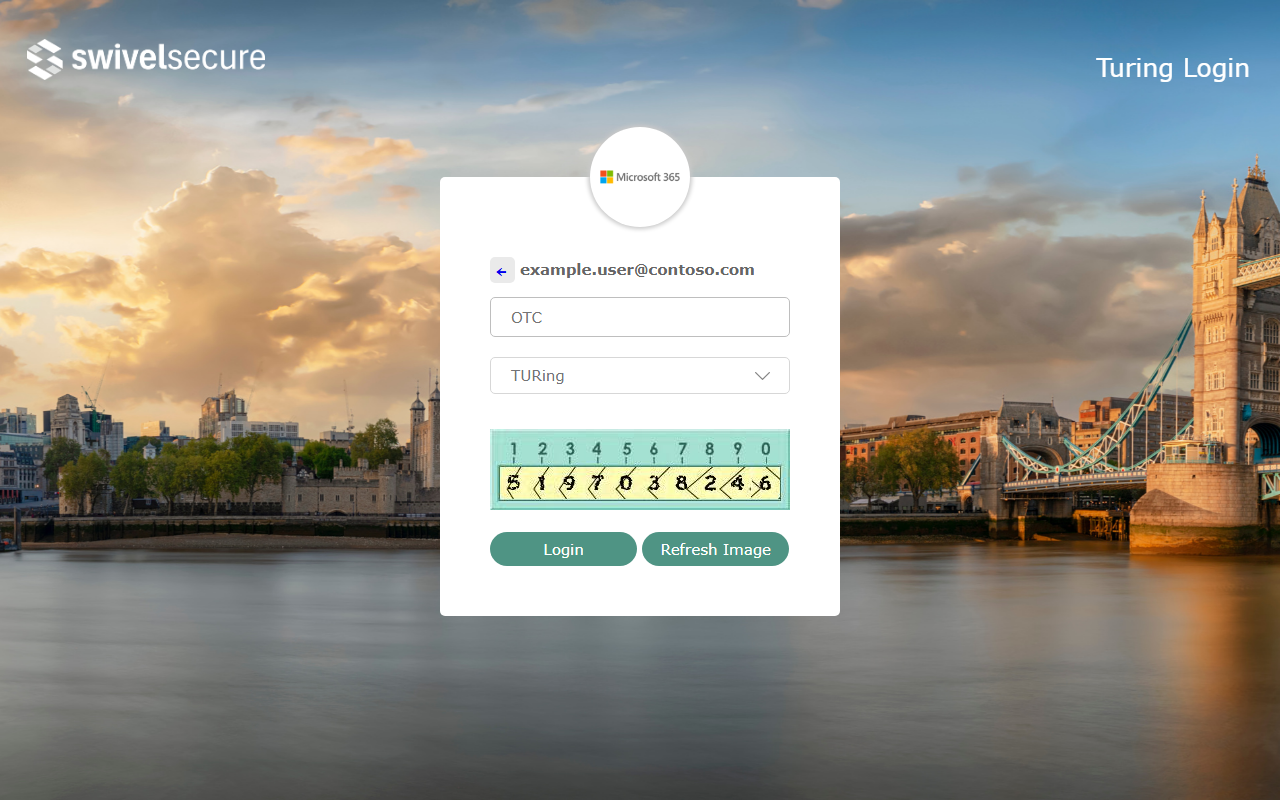
The user selects it and is redirected to Sentry. The user name is pre-filled from Entra ID. The user completes the authentication method (in this example the TURing challenge) and selects Login.
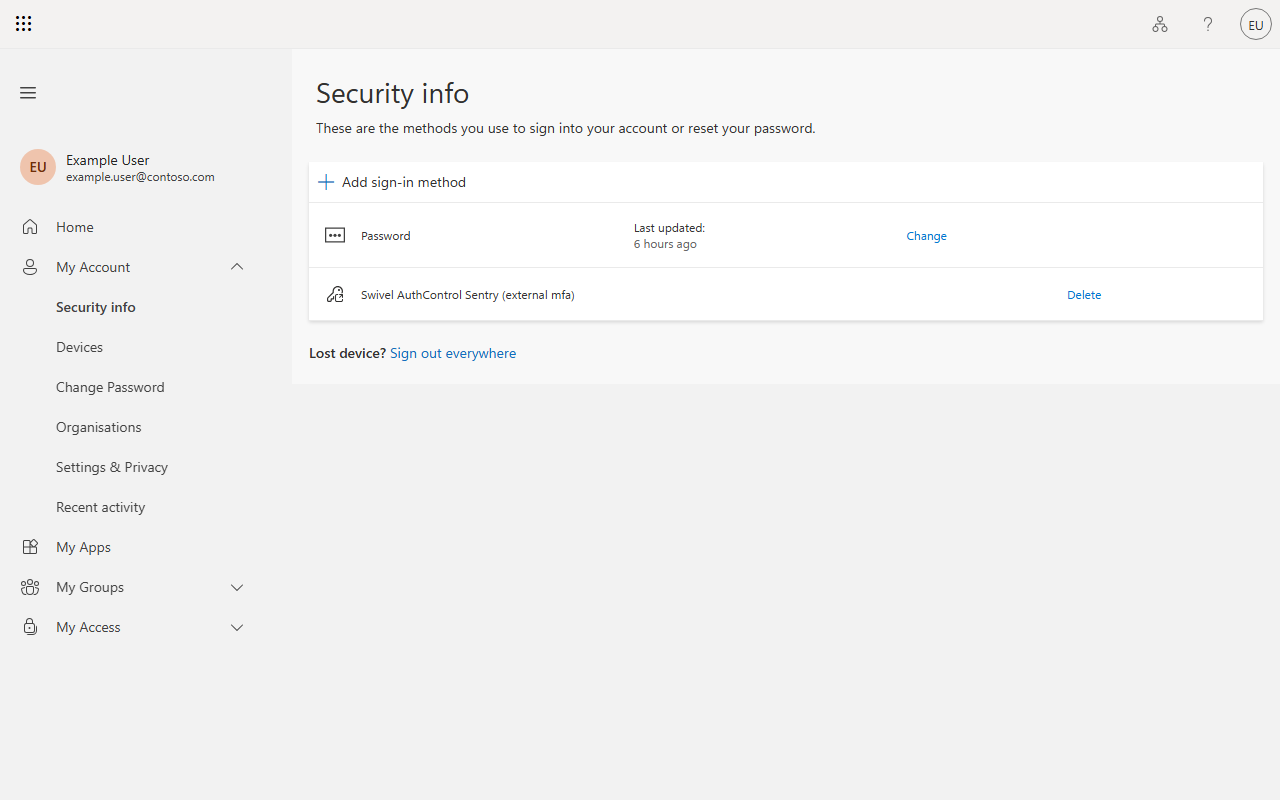
Sentry returns the user to Entra ID, which accepts the multi-factor authentication and completes the sign-in. In this example the user lands on their Security info page, which now lists Swivel AuthControl Sentry (external mfa) as a sign-in method.
Example: signing in to My Apps
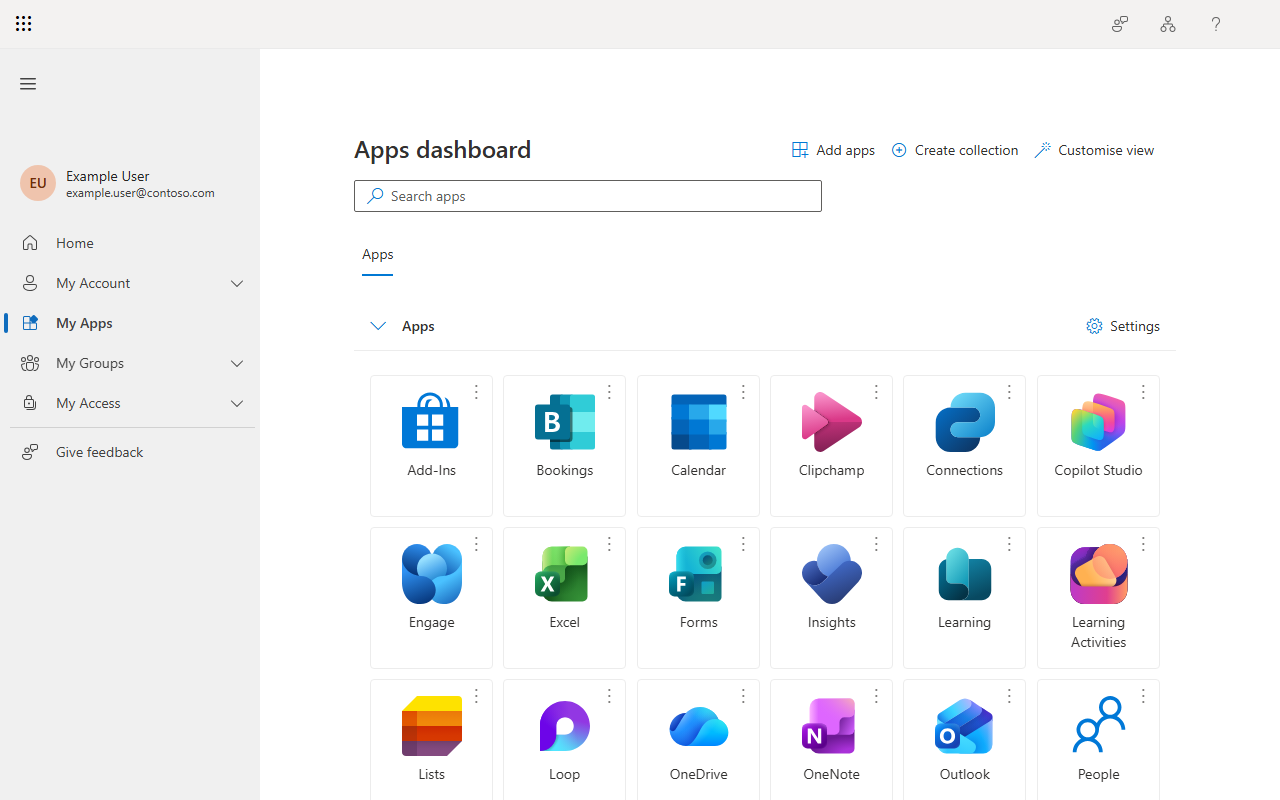
The animation below shows the whole experience for a registered user signing in to My Apps: user name and password, the Entra ID prompt to approve with Sentry, the Sentry TURing login, and the user arriving at the My Apps dashboard.
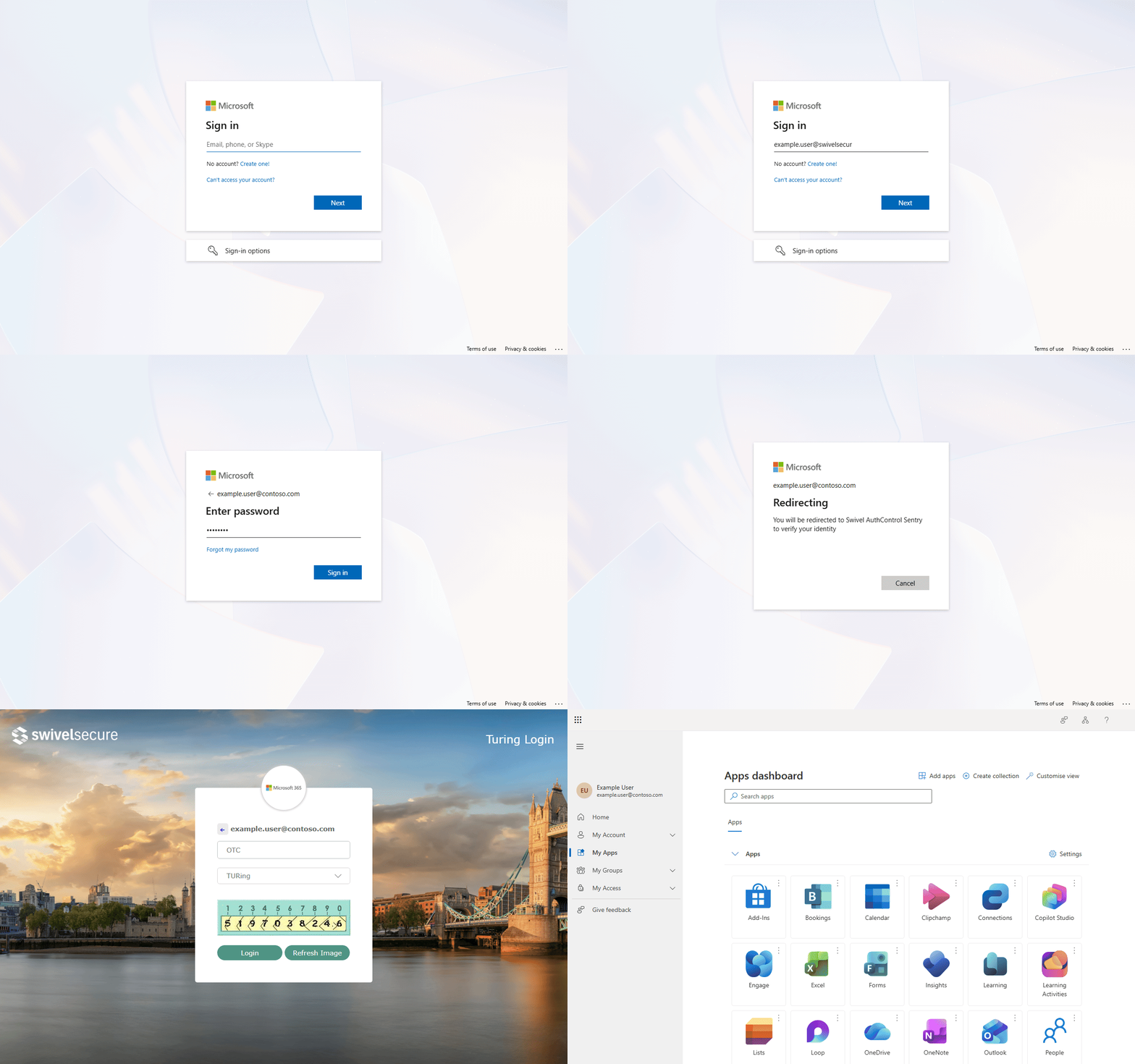
The user ends on the My Apps dashboard.
Troubleshooting
Sentry records OIDC problems in the SSO console Log Viewer. Use these messages to find the cause.
What the user or log shows |
Cause and fix |
|---|---|
Sentry shows An error has occurred as soon as the user is redirected, and the Log Viewer shows “Unhandled exception during SSO flow” |
No application matches the |
Sentry shows Access is not allowed, and the Log Viewer shows “id_token_hint rejected: aud […] does not match this application’s client id” |
The Application ID in the |
Sentry shows An error has occurred for every request that carries an |
The application has no Metadata URI, so Sentry cannot verify the hint. Set OIDC Metadata Source to Metadata URI and enter the Entra ID metadata URL for your tenant (section 2). |
Sentry shows Access is not allowed for a user who can otherwise log in |
The Sentry user name does not match the user’s Entra ID user principal name, or the user cannot score the application’s Points. |
Entra ID keeps returning to Let’s keep your account secure after the provider is selected |
Entra ID has not yet picked up a recent change to the external method (for example a changed Client ID). Wait a few minutes and try again. |
Entra ID rejects the response from Sentry |
Check that the Microsoft ACR set is assigned to the application and that Return a single amr value is ticked. |